





















How to Remove Ads That Keep Popping Up on Your Android Phone
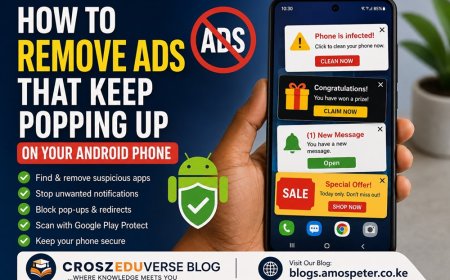
Are ads suddenly popping up on your Android phone? Learn how to find and remove unwanted ads, disable notifications, remove suspicious apps and secure your phone.

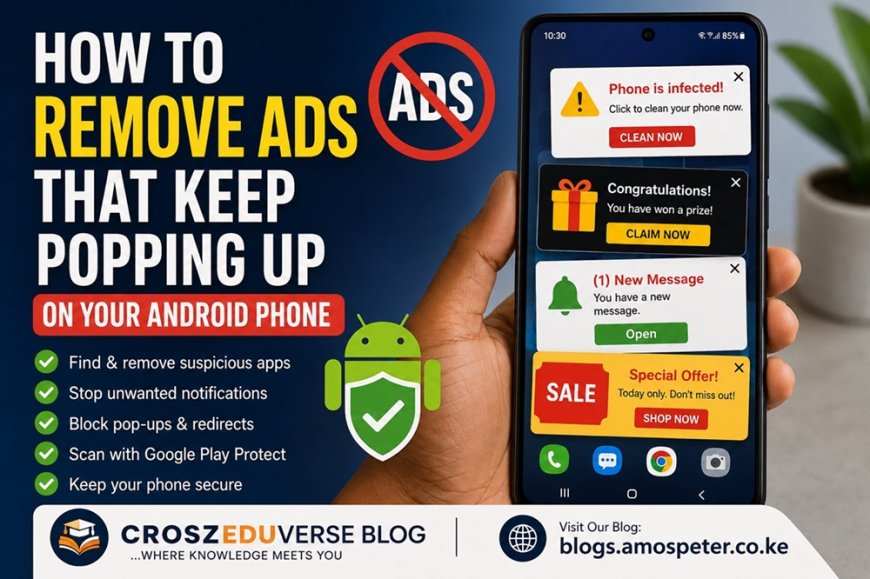
Have you ever been using your Android phone normally, then suddenly an advertisement appears on your screen?
You close it, open WhatsApp, and another one appears. You return to the home screen and see another advertisement. Sometimes the ads appear even when you aren't using a particular app.
That isn't normal Android behavior.
In many cases, these unwanted advertisements are caused by a recently installed app, browser notifications, aggressive advertising software, or an application that has permission to display content over other apps.
The good news is that you can usually fix the problem without installing another "phone cleaner" or random ad-blocking application.
In this guide, we'll show you how to find and remove unwanted pop-up ads from an Android phone, step by step.
Why Are Ads Suddenly Appearing Everywhere on My Phone?
Before removing the ads, it's useful to understand where they might be coming from.
1. A recently installed app
Some free applications display advertisements to generate revenue. Normally, those advertisements should appear inside the application.
However, some poorly designed or unwanted apps can display intrusive advertisements outside the app.
If the problem started shortly after installing an application, that app should be one of the first things you investigate.
This is particularly worth checking if you recently installed a:
- Free game
- Wallpaper app
- Phone cleaner
- File manager
- Keyboard
- Video downloader
- Launcher
- Flashlight app
- QR scanner
- APK downloaded from the internet
2. Website notifications
You may have visited a website and accidentally pressed Allow when it asked to send notifications.
Once permission is granted, the website can send notifications that may look like advertisements, promotions or fake security warnings.
3. An app can appear over other apps
Android allows certain applications to display information over other applications.
For example, chat bubbles and some accessibility tools may need this permission.
However, a problematic application can abuse this feature to display unwanted content.
4. Adware or unwanted software
If advertisements appear constantly, even when you aren't browsing the internet, unwanted software could be responsible.
This is especially important to investigate if you recently installed an APK from outside the Google Play Store.
How to Remove Pop-Up Ads From Your Android Phone
Try the following solutions in order.
1. Uninstall Recently Installed Apps
This is one of the first things you should try.
Think about when the advertisements started.
Then ask yourself:
What did I install shortly before the ads appeared?
Go to:
Settings → Apps → See all apps
The exact wording can differ depending on your phone.
Look through recently installed applications and remove anything suspicious or unnecessary.
To uninstall an app:
- Open Settings.
- Tap Apps.
- Find the suspicious application.
- Tap Uninstall.
- Restart your phone.
- Check whether the advertisements have stopped.
Don't only look for applications with strange names. A normal-looking free application can also be responsible.
2. Use Android Safe Mode to Find the Problem App
If the advertisements appear so frequently that you can't determine which app is responsible, Safe Mode can help.
Safe Mode temporarily disables downloaded applications.
If the ads disappear while your phone is running in Safe Mode, a downloaded application is likely causing the problem.
The exact method for entering Safe Mode depends on your phone manufacturer.
On many Android phones:
- Press and hold the Power button.
- Press and hold Power off.
- Look for the Safe Mode option.
- Confirm the restart.
- Use your phone normally for a few minutes.
If the advertisements disappear, start removing recently installed applications one by one.
Restart the phone normally after uninstalling each suspicious app and check whether the advertisements return.
3. Check Which Apps Can Appear Over Other Apps
This is particularly useful if advertisements appear over WhatsApp, YouTube, your home screen or other applications.
Depending on your phone, look for a setting similar to:
Settings → Apps → Special app access → Display over other apps
On Samsung phones, this feature may be called Appear on top.
Look through the applications that have this permission.
If you see an unfamiliar application with permission to appear over other apps, disable the permission and see whether the advertisements stop.
Don't disable this permission for every application. Some legitimate apps need it to provide useful features.
4. Stop Unwanted Chrome Notifications
Sometimes what looks like an advertisement from an app is actually a notification from a website.
If you previously allowed a website to send notifications, you can remove that permission.
In Google Chrome:
- Open Chrome.
- Tap the three dots.
- Select Settings.
- Tap Site settings.
- Select Notifications.
- Review websites that have notification permission.
- Block websites you don't recognize or no longer need.
You can also review the permissions for individual websites.
If you don't use website notifications, you can disable them altogether.
5. Turn Off Pop-Ups and Redirects in Chrome
If the problem happens mainly while browsing websites, check Chrome's pop-up settings.
Go to:
Chrome → Settings → Site settings → Pop-ups and redirects
Make sure unwanted pop-ups and redirects are blocked.
However, remember that browser settings won't normally fix advertisements caused by an installed application.
If ads appear while you're on the home screen or inside WhatsApp, investigate your installed apps instead.
6. Scan Your Phone With Google Play Protect
Before downloading another antivirus or "phone cleaner," check the security feature already available through Google Play.
It's called Google Play Protect.
To run a scan:
- Open the Google Play Store.
- Tap your profile picture.
- Select Play Protect.
- Start a scan.
- Make sure Play Protect remains enabled.
Play Protect can detect potentially harmful applications and warn you about them.
This is especially important if you install applications from outside the Google Play Store.
7. Check Apps You Don't Recognize
Open your complete list of installed applications and look carefully.
Ask yourself:
Did I install this application?
If you don't recognize an app, don't automatically assume it is malicious. First investigate what it does.
Pay particular attention to applications installed around the time the advertisements started.
Be especially careful with applications that display scary messages such as:
- "Your phone has a virus!"
- "Your storage is full!"
- "Your battery is damaged!"
- "Your phone is infected!"
- "You have won a prize!"
- "Install this cleaner now!"
Don't click these messages simply because they look urgent.
A website can display a fake security warning without your phone actually being infected.
8. Check Recently Installed APK Files
Android allows applications to be installed using APK files.
An APK is the installation file used by Android applications.
While APK files aren't automatically dangerous, downloading them from unknown websites can increase your security risk.
If you recently installed an APK from:
- A random website
- Telegram
- A file-sharing service
- An unknown app store
and the advertisements started afterwards, investigate that application first.
If you don't need it, uninstall it.
9. Check Your Browser
If advertisements only appear while you're browsing, the browser may be the issue.
Check:
- Website notifications
- Pop-ups
- Redirects
- Site permissions
- Downloads
- Recently visited websites
Avoid clicking suspicious advertisements or downloading applications from websites you don't trust.
What If the Ads Still Keep Appearing?
If you've tried the steps above and the advertisements continue, try these additional steps:
Restart your phone
It sounds simple, but restarting can help determine whether the behavior is temporary.
Update Android
Check:
Settings → System → Software update
The exact location varies by manufacturer.
Also check for Google Play system updates if your phone provides that option.
Remove suspicious applications
If you identify an app that was installed around the time the problem began, uninstall it.
Back up your important data
If the problem becomes severe and nothing else works, you may eventually need to consider a factory reset.
Do not factory reset your phone before backing up important information.
Back up your:
- Photos
- Videos
- Contacts
- Documents
- WhatsApp data
- Important files
A factory reset removes personal data and applications from the device.
Don't Install Random "Ad Blocker" or "Phone Cleaner" Apps
This is an important warning.
When people see advertisements everywhere, their first reaction is often to search for:
"Ad remover"
"Virus cleaner"
"Phone booster"
"Ad blocker"
Be careful.
Installing another unknown application could make the problem worse.
Start with tools that are already available on your phone:
- Android Settings
- App management
- Chrome site settings
- Google Play Protect
- Safe Mode
These should be your first line of troubleshooting.
How to Prevent Pop-Up Ads in the Future
Once you've solved the problem, take a few precautions.
Download apps from trusted sources
Use the Google Play Store whenever possible.
Don't automatically press "Allow"
When a website asks:
"Allow notifications?"
Think about whether you actually need notifications from that website.
Review app permissions
A simple application shouldn't necessarily need access to features unrelated to what it does.
Keep Google Play Protect enabled
It provides an additional layer of protection against potentially harmful applications.
Keep your phone updated
Install available Android and security updates.
Be careful with APK files
Don't install an APK just because someone sent it to you.
Don't trust scary pop-ups
If a website suddenly tells you:
"Your phone has 5 viruses!"
don't panic.
Close the page and use trusted security tools to investigate instead.
Why Is My Phone Showing Ads When I'm Not Using Any App?
If advertisements appear even when you're sitting on the home screen, a third-party application is one of the first things you should investigate.
Try uninstalling applications you installed recently.
If you're unsure which application is responsible, use Safe Mode.
If the ads disappear in Safe Mode, downloaded software is likely responsible.
How Do I Know Which App Is Showing the Ads?
Start with applications you installed shortly before the problem began.
If you still can't identify it:
- Restart your phone in Safe Mode.
- Check whether the ads disappear.
- If they do, restart normally.
- Uninstall recently installed apps one at a time.
- Restart the phone after removing each suspicious application.
- Check whether the advertisements return.
This method can help you identify the application without having to reset the entire phone.
Can a Website Cause Ads to Appear on My Phone?
Yes.
If you gave a website permission to send notifications, that website can send notifications to your phone.
This is why checking Chrome's notification permissions is important.
If you don't recognize a website in your notification permissions, remove its permission.
Does Seeing Pop-Up Ads Mean My Phone Has Been Hacked?
Not necessarily.
Seeing an advertisement does not automatically mean that someone has hacked your phone.
The cause could be something as simple as:
- An advertising-supported app
- A website notification
- An aggressive app
- An unwanted application
- Browser redirects
However, if advertisements are appearing constantly across different applications, especially after installing an unfamiliar app, you should investigate the issue.
Final Thoughts
If your Android phone suddenly starts showing advertisements everywhere, don't panic and don't immediately install another cleaner or antivirus application.
Start by thinking about when the problem began.
Then check the applications you installed around that time.
If that doesn't solve the problem, check:
Apps → Special access → Display over other apps
Then check your Chrome website notifications, run Google Play Protect and try Safe Mode.
In many cases, identifying and uninstalling the problematic application is enough to get your phone back to normal.
And remember:
A website telling you that your phone has a virus doesn't necessarily mean your phone has a virus.
Don't click scary pop-ups. Don't install software simply because an advertisement tells you to.
Use your phone's built-in security features first, and investigate the source of the advertisements before installing anything else.
Quick Fix Checklist
- Check recently installed applications
- Uninstall suspicious applications
- Test the phone in Safe Mode
- Check apps allowed to display over other apps
- Remove unwanted Chrome notification permissions
- Block unwanted pop-ups and redirects
- Run Google Play Protect
- Check recently installed APKs
- Install Android and security updates
- Back up your data before considering a factory reset
What's Your Reaction?