




















How to Convert Word to PDF - 5 Free Methods (Windows & Mac)
Learn how to convert a Word document to PDF for free in 2026. This guide covers 5 built-in methods that work on Windows and Mac no downloads, no paid tools, no sign-ups. Save As PDF, Export, Print to PDF, Google Docs, and LibreOffice all explained step by step.

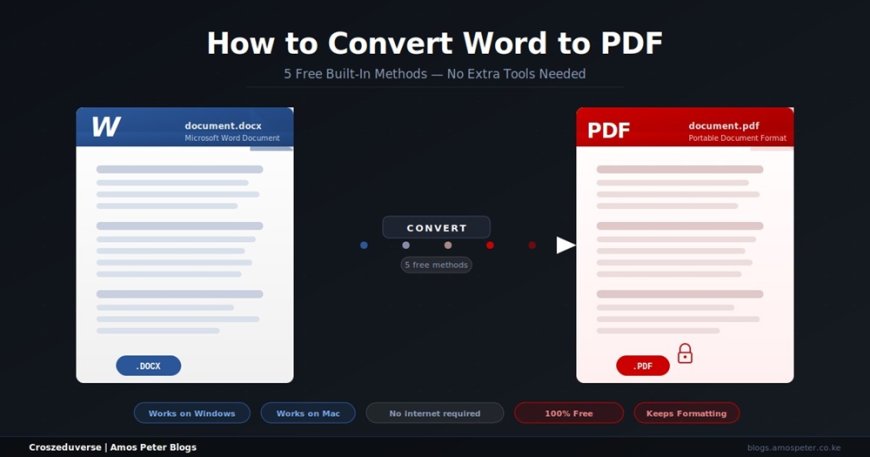
Converting a Word document to PDF keeps your formatting exactly as you designed it — fonts, spacing, images, and layout stay locked in place no matter what device or software opens it. Every method in this guide is free. None of them require you to install extra software or upload your file to a random website.
Why Convert Word to PDF?
Word documents can look different depending on the version of Word, the operating system, and the fonts installed on the device opening them. PDFs look the same everywhere. That is why employers, universities, and government portals ask for PDF submissions — not .docx files.
A PDF also cannot be accidentally edited by the person receiving it, which makes it the safer choice for CVs, contracts, reports, and official documents.
Method 1: Save As PDF - Directly in Word (Windows & Mac)
This is the fastest method. You do not leave Word at all.
On Windows
- Open your document in Microsoft Word
- Click File in the top-left corner
- Click Save As
- Choose where to save the file (your desktop, a folder, etc.)
- At the bottom of the Save As dialog, click the Save as type dropdown
- Select PDF (*.pdf)
- Click Save
Your PDF is created instantly in the same folder.
Optional: Before saving, click Options in the Save As dialog to choose whether to save the whole document or just specific pages, and whether to include document properties.
On Mac
- Open your document in Microsoft Word
- Click File in the menu bar
- Click Save As
- Click the File Format dropdown at the bottom of the dialog
- Select PDF
- Click Export
That is it. The PDF appears in the location you chose.
Method 2: Export as PDF - From Word's Export Menu (Windows & Mac)
Newer versions of Microsoft Word have a dedicated Export menu that gives you slightly more control over the output quality.
On Windows
- Open your document in Word
- Click File
- Click Export in the left sidebar
- Click Create PDF/XPS Document
- Click the Create PDF/XPS button
- Choose a save location
- Under Optimize for, select:
- Standard - best for printing and high-quality sharing
- Minimum size - smaller file, best for emailing or uploading online
- Click Publish
On Mac
- Click File > Export
- In the File Format dropdown, select PDF
- Choose your save location
- Click Export
The result is identical to Method 1 - this is just an alternative path to the same output.
Method 3: Print to PDF - No Word Needed at All (Windows & Mac)
Every modern version of Windows and macOS has a built-in virtual printer that converts any printable document to PDF. This works even if you do not have Microsoft Word you can use it with any application that can open a .docx file, including free alternatives like LibreOffice or the WordPad viewer.
On Windows
- Open the document in any application
- Press Ctrl + P to open the Print dialog (or click File > Print)
- In the Printer dropdown, select Microsoft Print to PDF
- Click Print
- A Save dialog will appear - choose where to save the PDF
- Click Save
On Mac
- Open the document in any application
- Press Cmd + P to open the Print dialog
- At the bottom-left of the Print window, click the PDF dropdown button
- Click Save as PDF
- Choose a file name and save location
- Click Save
macOS also gives you additional options here you can open the PDF in Preview, send it directly by email, or save it to iCloud Drive.
Method 4: Google Docs - Free, Works From Your Browser (Any Device)
If you do not have Microsoft Word installed, Google Docs can open a .docx file and convert it to PDF for free — directly from your browser, on any device.
- Go to docs.google.com and sign in with a Google account
- Click the folder icon (Open file picker) or drag and drop your .docx file into the Google Docs homepage
- Your Word document will open in Google Docs
- Click File in the menu bar
- Click Download
- Select PDF Document (.pdf)
- The PDF downloads automatically to your device
Note: Google Docs is very accurate at preserving most formatting. Complex Word layouts such as multi-column text or advanced table styles may appear slightly different. Always check the downloaded PDF before sending it.
Method 5: LibreOffice Writer - Free, Offline, No Account Needed
LibreOffice is a free, open-source office suite that opens .docx files and exports them to PDF with high accuracy. It is a good option if you want a permanent offline tool that does not require Microsoft Office.
Download LibreOffice: libreoffice.org (free, works on Windows, Mac, and Linux)
Steps after installing
- Open LibreOffice Writer
- Open your .docx file: File > Open (or drag the file into LibreOffice)
- Click File in the menu bar
- Click Export as PDF
- A PDF Options dialog will appear - you can leave the default settings or adjust:
- Range - export all pages or a specific page range
- Image compression - reduces file size at the cost of image quality
- Tagged PDF - for accessibility compliance
- Click Export
- Choose a save location and click Save
LibreOffice gives you more export options than Word does, which makes it useful when you need fine control over the PDF output.
Which Method Should You Use?
| Your Situation | Best Method |
|---|---|
| You have Microsoft Word on your PC | Method 1 - Save As PDF |
| You want control over quality vs file size | Method 2 - Export |
| You just need a quick PDF from any app | Method 3 - Print to PDF |
| You do not have Word installed | Method 4 - Google Docs |
| You want a free permanent offline tool | Method 5 - LibreOffice |
| You are on a phone or tablet | Method 4 - Google Docs (browser) |
How to Reduce PDF File Size After Converting
If your converted PDF is too large to email or upload, here is how to reduce it:
In Word (before converting):
- Click File > Export > Create PDF/XPS
- Under Optimize for, choose Minimum size
In LibreOffice (before converting):
- In the PDF Options dialog, reduce image compression or lower image DPI
After the PDF is created (using your operating system):
- On Mac: Open the PDF in Preview > File > Export > set Quartz Filter to "Reduce File Size" > Save
- On Windows: Open the PDF in Microsoft Edge (right-click the PDF > Open with Edge), then print it again using Microsoft Print to PDF — this often compresses the file further
Common Questions
- Does the PDF look exactly like the Word document? Yes, in most cases. The closer you stay to basic Word formatting standard fonts, simple tables, normal margins the more accurate the conversion. Complex layouts with embedded fonts or unusual styles may look slightly different.
- Is it safe to use Method 4 (Google Docs)? For general documents, yes. However, uploading a confidential file like a private contract or personal CV to any cloud service carries some privacy risk. For sensitive documents, use Method 1, 2, or 3, which keep the file entirely on your device.
- Can I convert multiple Word files to PDF at once? In LibreOffice, you can use the Macro tool to batch-convert multiple files. On Windows, you can also drag multiple files to Microsoft Print to PDF through a print queue. Google Docs handles one file at a time.
- How do I convert PDF back to Word? Microsoft Word itself can open and convert a PDF file. Just open Word, click File > Open, and select the PDF. Word will convert it to an editable document the accuracy depends on how complex the original PDF layout was.
- What is the difference between .doc and .docx? Both are Microsoft Word formats. .doc is the older format (Word 97–2003). .docx is the modern format (Word 2007 onwards). All five methods in this guide work with both .doc and .docx files.
Final Thoughts
You do not need to install anything, pay for any tool, or upload your file to a third-party website to convert Word to PDF. Windows and macOS both have this built in. If you need it from a browser or phone, Google Docs handles it for free. If you want a full offline solution without Microsoft Office, LibreOffice is there.
Pick the method that matches your setup and you will have your PDF in under a minute.
What's Your Reaction?