












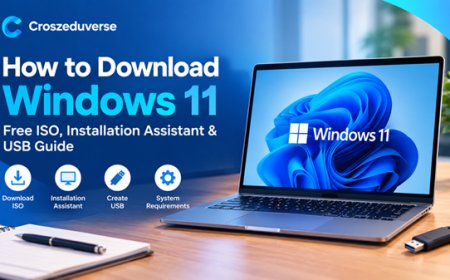








How to Download Windows 11: Free ISO, Installation Assistant & USB Guide
Learn how to download Windows 11 for free from Microsoft. Get Windows 11 ISO, Installation Assistant and USB installation options, plus system requirements and setup tips.

If you are looking for Windows 11 download, Windows 11 ISO, or simply want to know how to download Windows 11 for your PC, you can get the official installation files directly from Microsoft.
Windows 11 can be downloaded in several ways depending on what you want to do. You can upgrade an existing compatible PC using Windows Update or the Windows 11 Installation Assistant, download a Windows 11 ISO file, or create a bootable USB drive using Microsoft's Media Creation Tool.
In this guide, we'll show you how to download Windows 11 safely and legally, explain the different download options, and show you what you need before installing it.
Quick answer: The safest place to download Windows 11 is Microsoft's official Windows 11 download page. Avoid unofficial websites offering modified Windows ISO files, cracks, or activators.
Is Windows 11 free to download?
Yes, the Windows 11 installation software can be downloaded from Microsoft without paying a separate download fee.
However, downloading Windows 11 and having a Windows license are two different things. If your compatible Windows 10 PC already has a valid Windows license, you may be eligible for a free upgrade. For a new installation on a custom-built PC, you may need a valid Windows license.
Microsoft also states that the free upgrade keeps the same edition. For example, an eligible Windows 10 Home device upgrades to Windows 11 Home.
Important: Avoid websites offering "pre-activated Windows 11," cracked ISO files, or Windows activators. These downloads can be modified and may contain malware.
Windows 11 Download Options
There are three main ways to download or install Windows 11.
| Method | Best for | What you get |
|---|---|---|
| Windows Update | Existing compatible PC | Upgrade directly |
| Installation Assistant | Upgrading your current PC | Guided upgrade |
| ISO / Media Creation Tool | Clean installation or USB | Installation media |
Let's look at each option.
1. Download Windows 11 Through Windows Update
If you are already using Windows 10 or Windows 11, this is usually the simplest option.
On your PC:
- Open Settings.
- Go to Windows Update.
- Click Check for updates.
- If Windows 11 is available for your device, select Download and install.
- Follow the instructions on the screen.
- Restart your PC when prompted.
Microsoft says eligible devices can receive Windows 11 updates through Windows Update, although the timing can vary between devices.
If you are upgrading from Windows 10, your PC needs to meet Microsoft's Windows 11 hardware requirements.
2. Download Windows 11 Installation Assistant
The Windows 11 Installation Assistant is useful if you want to upgrade your current PC without creating a USB drive first.
Go to Microsoft's official Windows 11 download page and look for Windows 11 Installation Assistant.
The basic process is:
- Download the Windows 11 Installation Assistant.
- Open the downloaded program.
- Allow it to check your PC.
- If your PC is compatible, accept the installation.
- Follow the instructions.
- Allow the computer to restart as required.
Microsoft explains that the Installation Assistant checks whether the computer meets the hardware requirements before offering the upgrade.
When should you use the Installation Assistant?
Use it when:
- You already have Windows installed.
- You want to upgrade the current PC.
- You do not need a bootable USB.
- Your PC meets the Windows 11 requirements.
If you want to install Windows 11 on another computer or perform a clean installation, downloading an ISO or creating installation media may be more appropriate.
3. Download Windows 11 ISO File
The Windows 11 ISO is useful when you need an installation image that can be mounted or used to create installation media.
This is one of the reasons searches such as:
- Windows 11 ISO
- Download Windows 11 ISO
- Windows 11 ISO download
- Windows 11 download ISO
- Windows 11 ISO file download
- Windows 11 ISO file download 64-bit
appear frequently in search results.
Microsoft provides Windows installation media and ISO options through its official download tools.
How to download Windows 11 ISO
- Visit the official Microsoft Windows 11 software download page.
- Find the section for Windows 11 Disk Image (ISO).
- Select the Windows 11 ISO option.
- Choose your language.
- Confirm the selection.
- Download the ISO file.
- Save it somewhere with enough free storage.
The ISO can then be mounted directly in Windows or used to create a bootable USB drive.
Tip: Download the ISO directly from Microsoft rather than relying on third-party websites. This reduces the risk of downloading a modified or unsafe installation image.
Windows 11 25H2 Download
A lot of people are currently searching for Windows 11 25H2 download.
Windows 11 25H2 is the 2025 Windows 11 feature update and remains an important version for existing PCs. Microsoft's release information lists 25H2 as a General Availability version.
If your existing PC is eligible for 25H2, you can normally check:
Settings → Windows Update → Check for updates
Microsoft says eligible unmanaged Home and Pro devices can receive 25H2 through the normal Windows update process.
What about Windows 11 26H1?
You may also see searches for Windows 11 26H1.
Microsoft explains that 26H1 is intended for select new devices using newer hardware and is not designed as an in-place feature update for existing Windows 11 24H2 or 25H2 computers.
Therefore, if you have an existing compatible PC and are looking for a normal Windows 11 upgrade, you should use Microsoft's standard Windows Update or official Windows 11 download options rather than looking for an unofficial 26H1 ISO.
Windows 11 System Requirements
Before you download and install Windows 11, check whether your computer meets the minimum requirements.
Microsoft lists these minimum requirements:
- Processor: 1 GHz or faster with at least 2 cores on a compatible 64-bit processor
- RAM: 4 GB or more
- Storage: 64 GB or larger
- System firmware: UEFI and Secure Boot capable
- TPM: TPM 2.0
- Graphics: DirectX 12 compatible graphics with a WDDM 2.0 driver
- Display: HD display greater than 9 inches
- Internet: Required for some setup and features
- Microsoft account: Required during setup for Windows 11 Home and Windows 11 Pro for personal use
These are Microsoft's published minimum requirements.
How to check if your PC can run Windows 11
If you are not sure whether your computer is compatible, Microsoft provides the PC Health Check app.
The app can check your computer and tell you whether it meets the requirements for Windows 11.
This is particularly useful if you have an older laptop or desktop.
How to Create a Windows 11 Bootable USB
If you want to install Windows 11 on another computer or perform a clean installation, you can create a bootable USB drive.
Microsoft provides a Media Creation Tool for creating Windows installation media.
What you need
You will need:
- A working Windows PC
- A reliable internet connection
- A blank USB flash drive
- At least 8 GB of USB storage
- The Windows 11 Media Creation Tool
Warning: Creating installation media can erase the contents of the USB drive, so do not use a USB drive containing important files.
Steps
- Download Microsoft's Windows 11 Media Creation Tool.
- Connect your USB flash drive.
- Run the Media Creation Tool.
- Accept the license terms.
- Select the option to create installation media.
- Select your language and Windows edition.
- Choose USB flash drive.
- Select your USB drive.
- Allow the tool to download Windows 11 and create the bootable USB.
- When it finishes, safely eject the USB drive.
You can then use the USB drive to install Windows 11 on a compatible computer.
Microsoft recommends backing up your files before installing or reinstalling Windows.
Can I Use Rufus to Install Windows 11?
Yes. Rufus is a popular third-party tool for creating bootable USB drives from ISO files, and the Google Trends data you provided shows growing interest in searches such as Rufus download, Rufus Windows 11, and Rufus free download.
If you already have an official Windows 11 ISO, Rufus can be used to create bootable installation media.
However, if you are new to Windows installation, Microsoft's own Media Creation Tool is the simpler official option.
Also, be careful with third-party tools that claim to bypass Windows 11 hardware requirements. Installing Windows on unsupported hardware can have compatibility and update implications.
Windows 11 Pro Download
If you are searching for Windows 11 Pro download, you generally do not need a separate random "Windows 11 Pro ISO" from another website.
Microsoft's official Windows 11 ISO is a multi-edition installation image, and the edition you can activate depends on your license.
For an existing Windows PC, you can also check your current edition by going to:
Settings → System → About
Look under Windows specifications.
For a new installation, make sure you have the appropriate license for the edition you intend to use.
What About Windows 11 64-Bit?
Most modern Windows 11 PCs use 64-bit processors, and Microsoft's Windows 11 requirements specify a compatible 64-bit processor.
This is why searches such as Windows 11 download free 64-bit and Windows 11 ISO file download 64-bit are common.
When downloading Windows 11, always use the official Microsoft download options and select the appropriate architecture offered for your device.
Should You Download Windows 11 From a Third-Party Website?
We recommend downloading Windows 11 from Microsoft.
Third-party websites may offer:
- Modified ISO files
- Pre-activated versions
- "Lite" versions of Windows
- Cracked Windows versions
- Custom Windows builds
- Unknown download managers
These files may not be identical to Microsoft's official Windows installation files.
For a normal Windows 11 installation, there is little reason to take that risk when Microsoft provides official download and installation tools.
Back Up Your Files Before Installing Windows 11
Before performing a clean installation, back up important files such as:
- Documents
- Photos
- Videos
- Desktop files
- Downloads
- Browser bookmarks
- Work files
- Important application data
A clean installation can remove existing files and applications from the Windows installation drive.
Even when performing an upgrade that is designed to keep your files, Microsoft recommends backing up your data before installation.
Windows 11 Download FAQs
Where can I download Windows 11?
You can download Windows 11 from Microsoft's official Windows 11 download page. Microsoft provides options for upgrading, creating installation media and obtaining an ISO.
Is Windows 11 download free?
The Windows 11 installation software can be downloaded from Microsoft without paying a separate download charge. A valid Windows license may still be required depending on your situation.
How do I download Windows 11 for PC?
For an existing compatible PC, you can use Windows Update or the Windows 11 Installation Assistant. For a clean installation, you can download the ISO or create a bootable USB.
Can I download Windows 11 ISO?
Yes. Microsoft provides an official Windows 11 ISO download option.
Can I download Windows 11 Pro?
Yes. Windows 11 Pro is available through Microsoft's Windows 11 installation options. Make sure your Windows license matches the edition you want to activate.
What is the latest Windows 11 version?
Windows 11 has multiple servicing versions. Microsoft currently lists 26H1 and 25H2 among its current Windows 11 versions. However, 26H1 is designed for select new devices and is not an in-place upgrade for existing 24H2 or 25H2 systems.
Do I need a product key to install Windows 11?
A product key or digital license may be required to activate Windows, depending on your device and licensing situation. Some modern computers have a Windows product key embedded in firmware.
Can I install Windows 11 without TPM 2.0?
TPM 2.0 is part of Microsoft's minimum hardware requirements for Windows 11. Bypassing the requirements may result in an unsupported installation, so it is better to check your PC's compatibility first.
Final Thoughts
Downloading Windows 11 is straightforward when you use Microsoft's official tools.
For an existing compatible computer, Windows Update or the Windows 11 Installation Assistant is usually the easiest route. If you need to install Windows 11 on another PC, perform a clean installation, or create a bootable USB, downloading the official Windows 11 ISO or using the Media Creation Tool is more suitable.
The most important thing is to download Windows 11 from a trusted source, check your PC's compatibility, and back up your important files before starting the installation.
If you're also looking for software to use after installing Windows 11, you can find guides on Croszeduverse covering applications such as VS Code, XAMPP, Rufus, VLC, Chrome, Android Studio, Node.js and other essential Windows software.
What's Your Reaction?