













USB Port Colors Explained: What Each USB Color Means
Confused about USB port colors? This complete guide explains what black, blue, red, teal, yellow, and white USB ports mean, their speeds, power output, and how to identify USB 2.0, 3.0, 3.1, and 3.2 correctly.

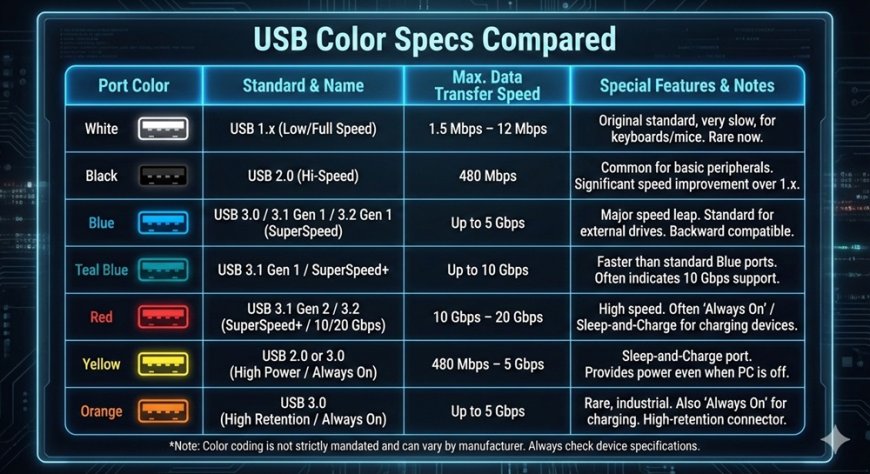
USB Port Colors Explained: What Each USB Color Means
If you’ve ever looked at your laptop or PC and noticed different colored USB ports black, blue, red, teal, yellow you’re not alone.
Most people plug in devices without knowing what those colors actually mean.
The truth is: USB colors usually indicate speed, power output, and generation type. Understanding them helps you get better performance from flash drives, external hard drives, keyboards, gaming devices, and more.
Let’s break it down clearly.
Why USB Port Colors Matter
Not all USB ports are the same.
Some are:
-
Faster
-
More powerful
-
Always on (even when your PC is off)
-
Designed for charging
-
Built for high-speed data transfer
Using the wrong port won’t damage your device — but it can slow things down.
USB Port Color Chart (Quick Overview)
| USB Color | USB Version | Speed | Common Use |
|---|---|---|---|
| Black | USB 2.0 | Up to 480 Mbps | Keyboard, mouse |
| White | USB 1.0 / 1.1 | 12 Mbps | Very old devices |
| Blue | USB 3.0 | 5 Gbps | Flash drives, external HDD |
| Teal | USB 3.1 Gen 2 | 10 Gbps | High-speed storage |
| Red | USB 3.1 / 3.2 | 10–20 Gbps | Charging + fast data |
| Yellow | Always-On USB | Varies | Charging devices when PC is off |
Now let’s explain each one properly.
Black USB Port – USB 2.0
This is the most common traditional USB port.
Speed: Up to 480 Mbps
Best for: Mouse, keyboard, printer, webcam
If you're transferring large files, this is not the fastest option.
How to identify:
-
Black interior
-
No “SS” (SuperSpeed) symbol
-
Usually older laptops or budget systems
Blue USB Port – USB 3.0 (SuperSpeed)
This is where things get faster.
Speed: Up to 5 Gbps
That’s over 10x faster than USB 2.0.
Best for:
-
External hard drives
-
High-speed flash drives
-
SSD enclosures
-
Video capture devices
How to identify:
-
Blue plastic insert
-
“SS” logo next to port
If your device supports USB 3.0, always use the blue port for better performance.
Teal USB Port – USB 3.1 Gen 2
Teal (sometimes turquoise) indicates a faster generation.
Speed: Up to 10 Gbps
Double the speed of USB 3.0.
Best for:
-
High-performance SSD drives
-
Large file transfers
-
Professional media workflows
Not all systems have teal ports — they’re more common on newer motherboards.
Red USB Port – High Power + Fast Data
Red USB ports usually mean one of two things:
-
Higher power output
-
USB 3.1 or USB 3.2 support
Speed: 10–20 Gbps (depending on version)
Red ports often support:
-
Fast charging
-
Charging even when PC is off
-
Power delivery for smartphones
If you want both speed and charging capability, this is usually the best port.
Yellow USB Port – Always-On Charging
Yellow ports are designed for power.
Even if your laptop is shut down, these ports may still charge devices.
Speed: Usually USB 2.0 or 3.0
Main purpose: Charging smartphones, tablets, power banks
Very useful when traveling.
White USB Port – Old Generation
White ports are rare today.
They indicate:
-
USB 1.0 or 1.1
-
Very slow speeds (12 Mbps)
Mostly found on very old computers.
USB Type A vs Type C (Important Clarification)
Color tells you about version and speed.
Shape tells you about connector type.
USB Type-A:
-
Traditional rectangular port
-
Comes in black, blue, red, etc.
USB Type-C:
-
Small, reversible connector
-
May support USB 3.1, 3.2, or Thunderbolt
-
Speed depends on version, not color
Always check the label near the port.
How to Know the Exact USB Version
Color is helpful — but not 100% reliable.
Better ways to confirm:
-
Check the label next to the port
-
“SS” = SuperSpeed
-
“10” = 10 Gbps
-
-
Check your laptop specifications
-
Look in Device Manager (Windows)
-
Check motherboard manual
Manufacturers sometimes use different colors.
USB Speed Comparison
| USB Version | Maximum Speed |
|---|---|
| USB 1.1 | 12 Mbps |
| USB 2.0 | 480 Mbps |
| USB 3.0 | 5 Gbps |
| USB 3.1 Gen 2 | 10 Gbps |
| USB 3.2 | 20 Gbps |
The difference between USB 2.0 and USB 3.0 is massive when transferring large files.
Common Questions People Search For
Is blue USB faster than black?
Yes. Blue (USB 3.0) is significantly faster than black (USB 2.0).
Can I plug a USB 2.0 device into a USB 3.0 port?
Yes. USB is backward compatible.
Why is my USB 3.0 device slow?
Possible reasons:
-
Plugged into USB 2.0 port
-
Using old cable
-
Device doesn’t support higher speed
Final Thoughts
USB port colors are more than decoration — they help identify speed, power capability, and version.
Quick summary:
-
Black = Basic
-
Blue = Fast
-
Teal = Faster
-
Red = Fast + Power
-
Yellow = Charging
-
White = Old
Next time you plug in a device, choose the right port and get the performance you paid for.
What's Your Reaction?


![2024 Social Media Image Sizes for All Networks [CHEATSHEET]](https://blogs.amospeter.co.ke/uploads/images/202406/image_430x256_666ad3fcd2380.jpg)