









How to Reset Your Router Password: The Ultimate Step-by-Step Guide (2026)
Forgot your WiFi password? Learn how to safely reset your router's password to factory defaults, secure your network, and troubleshoot common login issues. Includes a list of common default logins.

How to Reset Your Router Password: The Ultimate Step-by-Step Guide
Have you ever tried to connect a new device to your WiFi, only to realize you’ve completely forgotten the password? Or perhaps your internet is acting sluggish, and you suspect an unauthorized neighbor is pigging out on your bandwidth.
Resetting your router’s password is one of the most essential skills in home networking. Whether you are locked out of your own network or just want to tighten security, this guide will walk you through the process safely and effectively.
Why Reset Your Router Password?
Before we dive into the "how," it is crucial to understand the "why." Resetting isn't just for forgotten credentials; it is a vital security practice.
-
Security Breaches: If you suspect someone has hacked your network.
-
Forgotten Credentials: You cannot log in to the admin panel or connect new devices.
-
Fresh Start: You bought a used router and need to wipe the previous owner's settings.
Method 1: The Hard Reset (For Forgotten Passwords)
If you have forgotten your router’s custom password, there is no "recover password" button sent to your email. You must perform a Hard Reset. This returns the router to its factory default settings, erasing your custom WiFi name and password.
Step 1: Locate the Reset Button
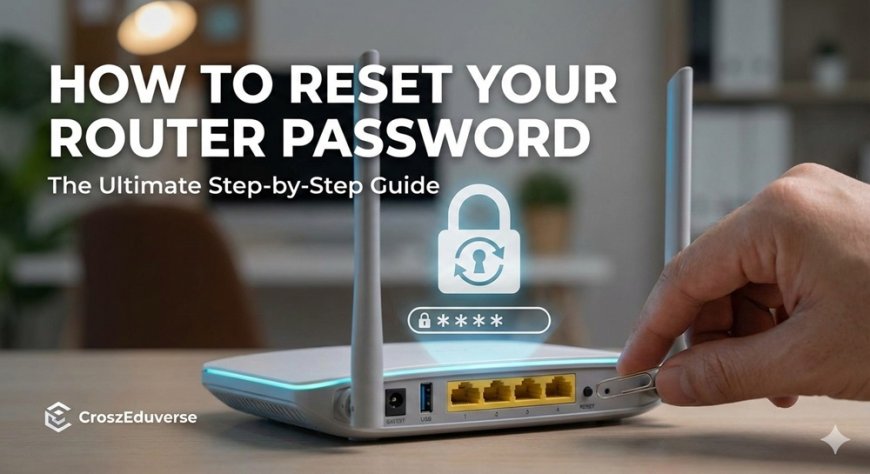
Grab your router and look at the back or bottom panel. You are looking for a tiny button labeled RESET.
-
The Pinhole: On most routers (TP-Link, Netgear, D-Link), this is a small hole recessed into the casing to prevent accidental presses.
-
The Button: On some modern mesh systems, it might be a tangible button.
Step 2: Press and Hold
-
Keep the router plugged into power.
-
Use a paperclip, SIM card tool, or a pen tip.
-
Insert it into the pinhole and press down gently. You should feel a click.
-
Hold for 10–30 seconds. Watch the lights on the router; they will usually flash, turn off, and then reboot.
Step 3: Wait for Reboot
Release the button and wait for the router to power back on fully. This can take up to 2 minutes. Once the internet light stabilizes, your router is back to its "out-of-the-box" state.
Method 2: Changing the Password via Admin Panel
If you know your current password but just want to change it to something stronger, you don't need to wipe the whole device.
-
Connect to the Network: Ensure your device is connected to the router (via WiFi or Ethernet cable).
-
Open a Web Browser: Use Chrome, Firefox, or Edge.
-
Enter the Gateway IP: In the address bar, type your router's IP address. Common defaults are:
-
192.168.0.1 -
192.168.1.1 -
10.0.0.1(often for Xfinity/Comcast)
-
-
Login: Enter your current username and password.
-
Navigate to Wireless Settings: Look for a tab labeled Wireless, WLAN, or Security.
-
Update Password: Enter your new password and click Save/Apply.
How to Log In After a Factory Reset
After a hard reset (Method 1), your old password won't work. You must use the Default Credentials.
Where to find Default Passwords
-
The Sticker: Check the bottom or back of the router. It lists the "Default IP," "Username," and "Password."
-
The Manual: The booklet that came with the box.
-
Common Defaults: If you can't find the sticker, try these common combinations:
| Manufacturer | Username | Password |
| TP-Link | admin | admin |
| Netgear | admin | password |
| D-Link | admin | (leave blank) |
| Linksys | admin | admin |
| Asus | admin | admin |
Note: If these don't work, search Google for "[Your Router Model] default password".
Crucial Next Step: Secure Your Router
Once you are logged in with the default credentials, do not leave them as is. Default passwords are public knowledge and incredibly insecure.
-
Change the Admin Login: Change the username from "admin" to something unique.
-
Set a Strong WiFi Password: Use at least 12 characters, mixing numbers, symbols, and mixed-case letters.
-
Bad:
Password123 -
Good:
Tr@vel-Coffee-99!
-
-
Update Firmware: While in the admin panel, check for "Firmware Updates" to patch security holes.
-
Encryption: Ensure your security mode is set to WPA2-AES or WPA3 (the modern standard). Avoid WEP, which is obsolete and easy to hack.
Troubleshooting: "I Can't Access the Login Page"
If typing 192.168.1.1 leads nowhere, try this:
-
Check Connections: Is your Ethernet cable clicked in tight?
-
Find Your Specific IP (Windows):
-
Press
Windows Key + R, typecmd, and press Enter. -
Type
ipconfigand press Enter. -
Look for Default Gateway. That number is your router's address.
-
-
Clear Browser Cache: Sometimes browsers try to load an old version of the page. Try "Incognito Mode."
Conclusion
Resetting your router password acts as a master key to your home's digital safety. Whether you performed a hard reset or a quick admin change, you are now in control of your network.
Need more tech tips? Subscribe to the CroszEduverse newsletter for weekly guides on mastering your digital life!
What's Your Reaction?