












How to Download and Install Fonts on PC & Mac (Step-by-Step Guide)
Learn how to download and install fonts on Windows and Mac safely. This beginner-friendly guide shows step-by-step instructions, trusted font websites, installation tips, and troubleshooting solutions.

Fonts can completely change how your design, document, or brand looks. Whether you're creating a logo, editing a poster, designing social media graphics, or preparing a school project, installing custom fonts gives your work a professional edge.
In this guide, you’ll learn:
-
Where to download fonts safely
-
How to install fonts on Windows
-
How to install fonts on Mac
-
How to fix common font problems
Let’s get started.
Why Download Custom Fonts?
Default system fonts are fine, but they’re limited. Custom fonts help you:
-
Improve branding
-
Make presentations more attractive
-
Design better social media posts
-
Create unique documents
-
Stand out visually
If you use tools like Microsoft Word, Adobe Photoshop, or Canva, installing fonts expands your creative options.
Step 1: Download Fonts from Trusted Websites
Always download fonts from safe and reputable sources to avoid malware.
Recommended platforms:
-
Google Fonts – Free and open-source fonts
-
DaFont – Large collection of creative fonts
-
Font Squirrel – Free for commercial use fonts
-
Adobe Fonts – Premium fonts for Adobe users
For beginners, Google Fonts is the safest and easiest option.
Step 2: Download the Font File
-
Visit the website
-
Search or browse for a font
-
Click the font you like
-
Click Download or Download Family
The font will usually download as a ZIP file.
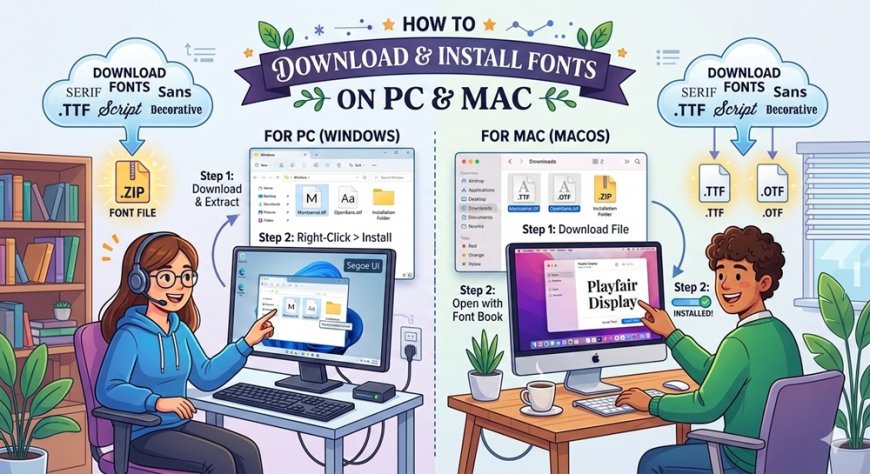
Step 3: Extract the ZIP File
Before installing, you must extract the file.
On Windows:
-
Right-click the ZIP file
-
Click Extract All
-
Open the extracted folder
On Mac:
-
Double-click the ZIP file
-
It will automatically extract
Inside the folder, you’ll see files ending in:
-
.TTF (TrueType Font)
-
.OTF (OpenType Font)
These are the actual font files.
Step 4: Install the Font
How to Install Fonts on Windows
Option 1:
-
Right-click the .TTF or .OTF file
-
Click Install
Option 2:
-
Double-click the file
-
Click Install at the top
The font is now available in your applications.
How to Install Fonts on Mac
-
Double-click the font file
-
Click Install Font
-
It will open in Font Book
Your font is now installed system-wide.
Step 5: Restart Your Applications
If your design software was open during installation:
-
Close it
-
Reopen it
Your new font should now appear in the font list.
Where Can You Use Installed Fonts?
After installation, you can use fonts in:
-
Microsoft Word
-
PowerPoint
-
Photoshop
-
Canva
-
Video editing software
-
Graphic design tools
Most applications automatically detect newly installed fonts.
How to Delete a Font
On Windows:
-
Open Control Panel
-
Click Fonts
-
Right-click the font
-
Click Delete
On Mac:
-
Open Font Book
-
Right-click the font
-
Click Remove
Common Font Installation Problems (And Fixes)
Font not showing up?
-
Restart the application
-
Restart your computer
Font won’t install?
-
Make sure the ZIP file is extracted
Font appears broken?
-
Re-download from a trusted site
TTF vs OTF – What’s the Difference?
-
TTF (TrueType Font) – Compatible with almost all systems
-
OTF (OpenType Font) – Supports advanced typography features
For most users, either format works perfectly.
Best Practices When Downloading Fonts
-
Avoid unknown websites with excessive ads
-
Check if the font is free for commercial use
-
Don’t install too many fonts at once
-
Keep your system organized
Frequently Asked Questions (FAQ)
Is it safe to download fonts?
Yes, if you download from trusted websites like Google Fonts or Font Squirrel.
Are free fonts legal to use?
Some are free for personal use only. Always check the license before using them commercially.
Why is my font not appearing in Canva?
Canva free version does not support custom font uploads. You need Canva Pro.
Final Thoughts
Downloading and installing fonts is simple once you understand the process:
-
Choose a trusted website
-
Download the font
-
Extract the file
-
Install it
-
Restart your apps
That’s all.
Custom fonts can instantly upgrade your documents, designs, and branding. If you're working on digital projects, this is a skill worth mastering.
What's Your Reaction?