












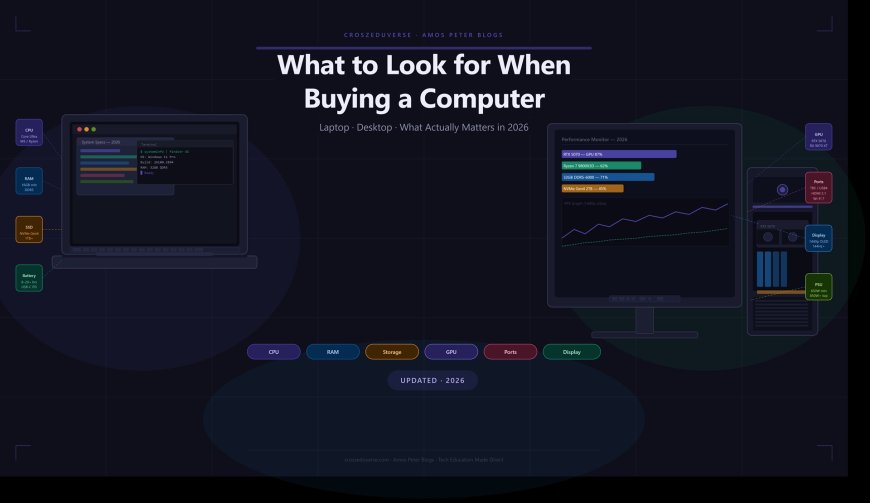
What to Look for When Buying a Laptop or Desktop (2026)
Buying a computer in 2026? Here's exactly what to check CPU, RAM, storage, GPU, display, ports & more. Updated with real 2026 specs, chips, and what to avoid.

Start Here: What Will You Use It For?
Before you look at a single spec, answer this: what will you actually use the computer for? Everything else CPU, RAM, display, ports flows from that answer. Here is the map:
| Your Use | You Need |
|---|---|
| Browsing, email, documents | Any budget machine — keep it simple |
| School / light work | Mid-range CPU, 16GB RAM, SSD |
| Remote work / business | Good CPU, 16GB+ RAM, solid display, long battery |
| Photo & video editing | Powerful CPU + GPU, 32GB RAM, colour-accurate display |
| Gaming | Dedicated GPU (RTX/RX), fast RAM, high-refresh display |
| AI / 3D / engineering | High-core CPU, 32–64GB RAM, pro GPU |
Laptop or Desktop? Decide First.
| Laptop | Desktop | |
|---|---|---|
| Portability | ✅ Take it anywhere | ❌ Fixed location |
| Performance per dollar | You pay more for same power | More power for less money |
| Upgradeability | Very limited — CPU/GPU usually soldered | Full — swap GPU, RAM, storage anytime |
| Battery backup | ✅ Built-in (8–20+ hrs) | ❌ Needs constant power |
| Best for | Students, travellers, remote workers | Home office, gaming, power users, creators |
Bottom line:
- Move around? → Laptop
- Stay at a desk and want max value or power? → Desktop
The 9 Things to Check Before You Buy in 2026
1. Processor (CPU) — The Most Important Decision
In 2026, the CPU landscape has changed significantly. Here is what is actually shipping right now:
For Laptops:
| Chip | Who It's For |
|---|---|
| Intel Core Ultra (Series 3 — Panther Lake) | Latest Intel chips; strong everyday performance with built-in AI NPU. Found in premium 2026 Windows laptops |
| AMD Ryzen AI (Gorgon Point) | AMD's 2026 answer to Panther Lake — great efficiency and performance for Windows users |
| Qualcomm Snapdragon X2 Elite / Plus | ARM-based chip; exceptional battery life (15–20+ hrs), fanless design, great for light-to-medium work. Not ideal for all Windows apps |
| Apple M5 / M5 Pro / M5 Max | The fastest laptop chips available. Incredible battery life, best-in-class performance per watt. macOS only |
For Desktops:
| Chip | Who It's For |
|---|---|
| Intel Core Ultra 7 / Ultra 9 (Series 2+) | Strong multi-core desktop performance |
| AMD Ryzen 7 9800X3D / Ryzen 9 9950X | Best gaming CPUs in 2026 — 3D V-Cache gives huge gaming FPS advantage |
| AMD Ryzen 5 / 7 (9000 series) | Great everyday and mid-range builds |
Simple guide:
| Use | Minimum to look for |
|---|---|
| Basic everyday | Intel Core Ultra 5 / Ryzen 5 / Snapdragon X Plus |
| Multitasking / work | Intel Core Ultra 7 / Ryzen 7 / Apple M5 |
| Gaming / editing | Intel Core Ultra 9 / Ryzen 7 9800X3D / Apple M5 Pro |
❌ Avoid in 2026: Intel Celeron, Pentium, any Core i3 older than 12th Gen, or any laptop still running an 11th Gen or older Intel chip. They are outdated and will frustrate you quickly.
2. RAM — How Much Is Enough in 2026?
DDR4 is mostly gone from new premium laptops and desktops. DDR5 is the standard in 2026 — faster, more efficient, and future-proof.
| RAM | Reality in 2026 |
|---|---|
| 4GB | ❌ Do not buy. Unusable even for basic tasks |
| 8GB | Acceptable only for Chromebooks — tight for Windows/macOS |
| 16GB | ✅ Minimum for most people in 2026 |
| 32GB | ✅ Recommended for anyone multitasking heavily, gaming, or doing creative work |
| 64GB+ | Video production, 3D rendering, AI workloads |
Laptop warning: Many thin laptops solder the RAM directly to the motherboard — meaning you cannot upgrade it later. If the machine ships with 16GB soldered, that is what you will have forever. Check before you buy.
Desktop note: For gaming, DDR5-6000 CL30 is the sweet spot on AMD Ryzen systems for best price-to-performance. Avoid single-stick configurations — always use two matched sticks (dual-channel) for better performance.
3. Storage — NVMe SSD Only in 2026
The HDD vs SSD debate is over. In 2026, NVMe SSDs that plug into the M.2 slot are the standard. They are dramatically faster than both old HDDs and basic SATA SSDs.
| Storage Type | Speed | Verdict |
|---|---|---|
| HDD (Hard Drive) | ~120 MB/s | ❌ Never as a primary drive |
| SATA SSD | ~500 MB/s | Outdated — avoid as primary |
| NVMe PCIe Gen 3 | ~3,500 MB/s | Acceptable in budget machines |
| NVMe PCIe Gen 4 | ~7,000 MB/s | ✅ The 2026 standard |
| NVMe PCIe Gen 5 | ~14,000 MB/s | Premium / future-proof — marginal real-world gain for most users |
How much storage do you need?
| Capacity | Good For |
|---|---|
| 256GB | Light use only — fills quickly |
| 512GB | Basic to medium use |
| 1TB | ✅ Recommended starting point for most people |
| 2TB+ | Gaming, video editing, large file storage |
For desktops: a 1TB NVMe SSD for your OS and main apps, plus a 2TB+ secondary drive for bulk storage, is the ideal setup.
4. Graphics Card (GPU) — Do You Need One?
Integrated graphics (built into the CPU) are fine for:
- Browsing and streaming
- Office work, video calls, documents
- Light photo viewing
You need a dedicated GPU for:
- Gaming
- Video editing and colour grading
- 3D modelling and rendering
- AI image generation tools (Stable Diffusion, etc.)
Current GPUs in 2026 — what's actually shipping:
For Laptops:
| GPU | Level | Good For |
|---|---|---|
| NVIDIA RTX 5050 | Entry | 1080p gaming, light editing |
| NVIDIA RTX 5060 / 5060 Ti | Mid-range | 1080p–1440p gaming, editing |
| NVIDIA RTX 5070 / 5080 | High-end | 1440p–4K gaming, pro creative |
| NVIDIA RTX 5090 (laptop) | Flagship | 4K gaming, pro AI/rendering |
| AMD Radeon RX 9060 / 9070 XT | Mid-to-high | Good value 1440p alternative |
For Desktops:
| GPU | Best Use |
|---|---|
| RTX 5060 ($299 MSRP) | 1080p gaming — best entry point |
| RTX 5060 Ti / RTX 5070 | ✅ 1440p sweet spot |
| RTX 5080 / 5090 | 4K gaming, professional AI work |
| AMD RX 9070 XT | Best value 1440p mid-range card |
VRAM matters in 2026: 12GB is the comfortable minimum for high-detail 1440p gaming. 16GB+ is recommended for 4K or creative work. The RTX 5070 (12GB) has already drawn criticism for being tight at this price point in 2026.
Note on prices: There is an ongoing RAM and memory shortage in 2026 pushing prices up. Factor this into your budget — pre-built systems with RTX 50-series cards may cost more than usual right now.
5. Display — What You Stare at Every Single Day
Do not skip this. A bad display makes even a powerful machine painful to use.
Resolution — minimum standards in 2026:
| Resolution | Verdict |
|---|---|
| 1080p Full HD (1920×1080) | ✅ Minimum acceptable |
| 1440p / 2.5K / QHD | ✅ Sweet spot for most 15–16" screens |
| 2.8K / 3K OLED | Premium — great for creators |
| 4K | Best for large screens and professional colour work |
Panel types:
| Type | What It Means |
|---|---|
| IPS | Good colour, wide viewing angles — solid all-round choice |
| OLED | Best contrast, deepest blacks, richest colours — top choice for creators and media. Burns in over years if static elements persist |
| Mini-LED | Excellent brightness and HDR, found on premium gaming laptops like Asus ROG Scar 18 (2026) |
| TN | Fast but poor colour and viewing angles — mostly dead in 2026 |
Refresh rate (for gaming especially):
| Refresh Rate | For |
|---|---|
| 60Hz | Standard — fine for office and everyday use |
| 120Hz / 144Hz | ✅ Recommended for gaming and general smoothness |
| 240Hz+ | Competitive gaming, esports |
Brightness:
- Minimum 300 nits for indoor use
- 400–500 nits for bright room or near-window use
- 1000+ nits for true HDR (found on OLED panels like the Dell XPS 16)
Screen size:
| Size | Best For |
|---|---|
| 13–14" | Ultra-portable, great for travel |
| 15–16" | ✅ Best balance of portability and screen space |
| 17–18" | Desktop replacement — heavy but immersive |
For creatives: look for 100% DCI-P3 colour coverage for accurate colour reproduction.
6. Battery Life (Laptops Only)
Manufacturer claims are always optimistic. Always check real-world test results from reviewers.
| Battery Life | Real-world meaning |
|---|---|
| Under 6 hrs | ❌ Won't last a full day — avoid for mobile use |
| 8–10 hrs | ✅ Good for a full school or work day |
| 12–18 hrs | Excellent — typical of Snapdragon X and Apple M5 machines |
| 18–20+ hrs | Outstanding — MacBook Air M5, Acer Swift 16 AI (tested ~18.5 hrs) |
USB-C charging: Most modern premium laptops now charge via USB-C / Thunderbolt instead of a proprietary barrel plug. This is convenient — you can charge from a phone charger, power bank, or dock. Check that your laptop supports USB-C Power Delivery (PD) charging.
7. Ports and Connectivity — 2026 Standards Explained
This is where most buying guides fail you. Here is what is actually on laptops and desktops right now, explained plainly:
USB-A (the big rectangular one) The classic USB port. Used for flash drives, mice, keyboards, older peripherals. Still common but disappearing from ultra-thin laptops. If your life has USB-A devices, make sure the laptop has at least one — or buy a hub.
USB-C The small oval port. In 2026 it does multiple jobs — but not all USB-C ports are equal. A USB-C port might support:
- Data transfer only
- Data + display output (DisplayPort Alt Mode)
- Data + charging (Power Delivery)
- All of the above
Always check the spec sheet. The label "USB-C" alone tells you almost nothing about its capability.
USB4 (80 Gbps) The latest open standard for USB-C ports. USB4 at 80 Gbps gives you fast data transfer, display output, and charging in one cable. Now standard on premium 2026 motherboards and many laptops. The catch: USB4 features are optional, meaning two USB4 ports from different brands may perform very differently. Speed can range from 20 Gbps to 80 Gbps — you need to check the spec.
Thunderbolt 4 (40 Gbps) Intel's certified standard. Unlike USB4, every Thunderbolt 4 port guarantees the same performance: 40 Gbps data, dual 4K display support or one 8K display, at least 100W charging, and wake-from-sleep via docks. You see the lightning bolt symbol ⚡ next to the port. Still very relevant in 2026 and found on most Intel premium laptops.
Thunderbolt 5 (80–120 Gbps) The newest and fastest port standard in 2026. Doubles Thunderbolt 4's bandwidth to 80 Gbps, with a Bandwidth Boost mode that pushes it to 120 Gbps when you need it (e.g., connecting multiple high-res displays). Supports three 4K displays at 144Hz or two 8K displays at 60Hz from a single port. Charges at up to 240W via USB-C. Apple's M4 Pro / M4 Max MacBook Pros already have it. More Windows laptops are gaining it with Panther Lake. For most users, Thunderbolt 4 is still plenty — but if you run a multi-monitor professional setup or connect high-speed external storage, Thunderbolt 5 is a meaningful upgrade.
HDMI 2.0 / 2.1 Still the most universally supported display output. Plugs directly into monitors, TVs, projectors. HDMI 2.0 supports 4K at 60Hz. HDMI 2.1 supports 4K at 120Hz and 8K at 60Hz. Most laptops still include an HDMI port — check which version it is.
SD Card Slot Essential for photographers and videographers. Many premium thin laptops have removed it. Check for it explicitly if you use cameras.
Headphone Jack (3.5mm) Still important. Many ultra-thin laptops have removed it. If you use wired headphones or a microphone, verify it is there.
Wi-Fi 7 (IEEE 802.11be) The current wireless standard in 2026. Wi-Fi 7 is now standard on most mid-range and premium laptops and desktops. It transmits across all three bands (2.4GHz, 5GHz, 6GHz) simultaneously, reducing latency and increasing real-world speed significantly over Wi-Fi 6E. If you are buying new in 2026, you should expect Wi-Fi 7 on anything mid-range or above.
Bluetooth 5.4 The current Bluetooth standard. Supports better range, lower power, and faster pairing for wireless mice, keyboards, headphones, and speakers. Standard on modern laptops.
Ethernet (RJ-45) A wired network port. Mostly found on desktops and some larger laptops. Gives lower latency and more stable connection than Wi-Fi — important for gaming, video calls, and large file transfers. Many thin laptops omit it — a USB-C to Ethernet adapter solves this cheaply.
Quick Port Checklist:
| Port | Essential? |
|---|---|
| USB-C (with data + charging + display) | ✅ Yes — at least 2 |
| Thunderbolt 4 or 5 | ✅ Yes if using docks or pro monitors |
| USB-A | ✅ At least 1 for legacy devices |
| HDMI | ✅ For connecting external displays |
| Wi-Fi 7 | ✅ Now expected on new machines |
| Bluetooth 5.4 | ✅ Standard — wireless accessories |
| SD Card slot | If you use cameras |
| Headphone jack | If you use wired audio |
| Ethernet | If you game or need rock-solid connectivity |
8. Build Quality and Operating System
Build quality:
- Aluminium / magnesium alloy: Premium feel, durable, lighter — look for this on laptops you carry daily
- Plastic / polycarbonate: Fine on budget machines — heavier and less durable but not a dealbreaker if you don't travel much
- MIL-SPEC rating (MIL-STD-810H): Drop, dust, and temperature tested. Common on business laptops (ThinkPad, Dell Latitude, HP EliteBook)
Operating System — pick what fits your world:
| OS | Best For |
|---|---|
| Windows 11 | Most users — widest software and game compatibility |
| macOS (Apple Silicon M5) | Creatives, Apple ecosystem, best battery + performance combo |
| ChromeOS | Students, basic web tasks, budget buyers |
| Linux | Developers, privacy-focused, advanced users |
9. Desktop-Specific: What to Check Beyond the Core Specs
If you are buying a desktop, these are easy to overlook:
Power Supply Unit (PSU): The PSU powers everything. A weak or cheap PSU is a system failure waiting to happen. For a gaming desktop: minimum 650W. RTX 5080 builds need 850W+. RTX 5090 builds need 1000W+. Always buy from a reputable brand (Corsair, Seasonic, be quiet!).
Motherboard chipset: Determines what CPU and RAM you can use, and how many PCIe lanes (for GPUs and SSDs) you get. AMD's AM5 platform (B650, X670) and Intel's LGA1851 platform are the standards in 2026. Both now support PCIe 5.0 and DDR5 natively.
Cooling: Better cooling = longer component life + sustained performance. Air coolers (like the Thermalright Peerless Assassin) handle most CPUs well. Liquid AIO coolers (like NZXT Kraken) are better for high-core-count CPUs under heavy workloads. Desktops with good case airflow run quieter and cooler.
Monitor (desktop buyers): The monitor is the screen — you need to buy this separately. The 1440p sweet spot in 2026 for most users is a 27-inch 1440p IPS or OLED panel at 144Hz+. For gaming: 1080p/240Hz (competitive esports), 1440p/144Hz (mainstream), 4K/120Hz+ (premium/4K builds).
Upgradeability: One of the best arguments for a desktop: you can swap the GPU in two years, add RAM, or upgrade storage without buying a whole new machine. This dramatically extends the value of a good desktop build.
Budget Guide — What Your Money Actually Buys in 2026
⚠️ Note: There is an ongoing memory shortage in mid-2026 that has pushed RAM and SSD prices higher than usual. Budget accordingly — expect to pay slightly more than you would have a year ago.
| Budget | Laptop | Desktop |
|---|---|---|
| Under $400 / £320 | Chromebook or basic Windows laptop — browsing and documents only | Not realistic for a complete desktop |
| $400–$700 / £320–£560 | Decent everyday laptop — Core Ultra 5 / Ryzen 5, 16GB RAM, 512GB SSD | Entry gaming or home PC: Ryzen 5, 16GB DDR5, RTX 5060 |
| $700–$1,100 / £560–£880 | ✅ Best value range — Core Ultra 7 / Ryzen 7, 16–32GB RAM, 1TB SSD, good display | ✅ Strong mid-range: Ryzen 7, 32GB DDR5, RTX 5060 Ti / RX 9070 |
| $1,100–$1,600 / £880–£1,280 | Premium Windows laptop or MacBook Air M5 — excellent performance, great display | High-end: Ryzen 7 9800X3D, RTX 5070, 32GB DDR5, 2TB SSD |
| $1,600+ / £1,280+ | Gaming laptops, MacBook Pro M5, creator workstations | 4K gaming / pro workstation territory |
5 Mistakes People Make When Buying in 2026
1. Buying 8GB RAM on a Windows machine — 8GB is now borderline for Windows 11. With modern apps, browser tabs, and background processes, it runs out fast. Get 16GB minimum.
2. Ignoring the port situation on ultra-thin laptops — Many sleek 2026 laptops have two or three USB-C ports and nothing else. If you rely on USB-A, HDMI, or an SD card, check before buying or budget for a dock.
3. Trusting manufacturer battery claims — Every brand inflates battery numbers. A laptop claiming 20 hours typically delivers 12–15 in real use. Check independent reviewer tests.
4. Buying a laptop with a cheap IPS screen on a creator machine — If you edit photos or videos, display colour accuracy matters. Look for 100% sRGB or DCI-P3 coverage. Budget displays often cover only 45–65% of sRGB.
5. Skipping the GPU brand research for desktops — Not all GPUs are created equal at the same model number. Some manufacturers use cut-down power limits (lower TDP versions of the same GPU) on cheaper boards. Check reviews of the specific card you are buying, not just the chip name.
Quick-Buy Checklist
✅ Laptop (2026)
- [ ] CPU: Intel Core Ultra 7 (Panther Lake) / AMD Ryzen AI / Apple M5 / Snapdragon X2
- [ ] RAM: 16GB minimum (DDR5 preferred) — check if soldered
- [ ] Storage: NVMe PCIe Gen 4 SSD — 512GB minimum, 1TB recommended
- [ ] GPU: Integrated for everyday; RTX 5060+ for gaming or editing
- [ ] Display: 1080p minimum, 1440p+ preferred; IPS or OLED; 300+ nits
- [ ] Battery: 8+ hours real-world; USB-C PD charging
- [ ] Ports: USB-C (with Thunderbolt 4 or 5), USB-A, HDMI 2.0+, Wi-Fi 7, BT 5.4
- [ ] OS: Windows 11 / macOS / ChromeOS — matched to your ecosystem
✅ Desktop (2026)
- [ ] CPU: Core Ultra 7 / Ryzen 7 (9000 series) or better
- [ ] RAM: 32GB DDR5-6000 dual-channel — minimum 16GB
- [ ] Storage: NVMe PCIe Gen 4, 1TB+ primary; optional HDD for bulk storage
- [ ] GPU: RTX 5060 Ti (1080p–1440p), RTX 5070 (1440p), RTX 5080/5090 (4K)
- [ ] PSU: 650W minimum; 850W–1000W for high-end GPU
- [ ] Motherboard: AM5 (AMD) or LGA1851 (Intel), PCIe 5.0 support, DDR5
- [ ] Connectivity: Wi-Fi 7, USB4 or Thunderbolt 4/5 ports, USB-A ports
- [ ] Monitor: 1440p / 144Hz+ recommended
- [ ] Cooling: Adequate for CPU TDP — air or AIO liquid
Final Word
The computer market in 2026 is better than ever — but also more confusing than ever, with new chip names, port standards, and GPU generations landing simultaneously. Cut through the noise by starting with your use case, matching specs to that use case, and running through the checklist before you pay.
At Croszeduverse (Amos Peter Blogs), we keep tech education honest, current, and straight to the point.
What's Your Reaction?