

















How to Install Google Chrome on Mac
Learn how to download and install Google Chrome on any Mac in under 3 minutes. This 2026 guide covers the full installation steps for macOS Tahoe, Sequoia, Ventura and older, plus how to set Chrome as your default browser and fix common install errors.

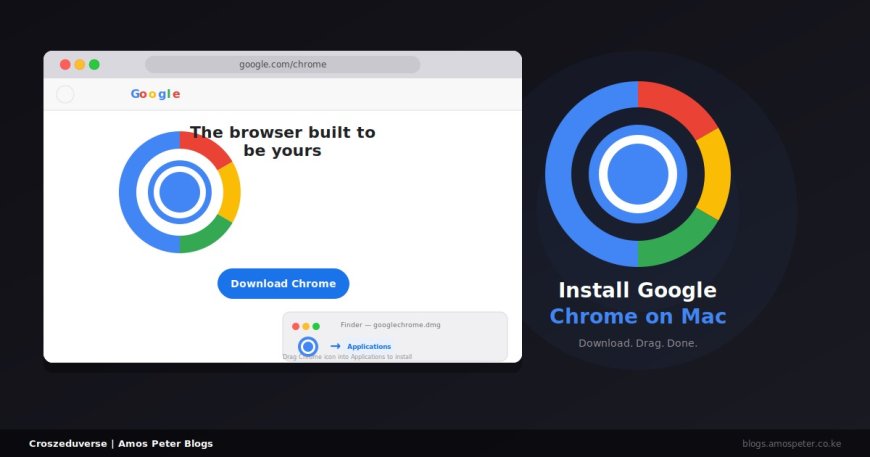
Safari comes built into every Mac. But millions of users switch to Google Chrome for its speed, extensions, and seamless Google account sync. Here is exactly how to install it no extras, no fluff.
What You Need
- A Mac running macOS 10.15 Catalina or later (Chrome no longer supports older versions)
- An internet connection
- About 2 minutes
Step 1 - Go to the Official Chrome Download Page
Open Safari (or any browser you currently have). In the address bar, type:
Press Return. This lands you on Google's official Chrome download page. Do not download Chrome from any other site only the official page guarantees a clean, safe installer.
Step 2 - Click "Download Chrome"
Click the blue Download Chrome button in the center of the page.
A popup will appear showing the Terms of Service. Read it if you like, then click Accept and Download. The file named googlechrome.dmg will start downloading immediately. You can see the progress in Safari's download indicator at the top-right.]
Step 3 - Open the .dmg File
Once the download finishes:
- Click the download indicator in Safari's toolbar (the arrow icon at the top-right) or open your Finder and go to your Downloads folder.
- Double-click googlechrome.dmg.
- A Finder window will open showing the Google Chrome icon on the left and a shortcut to your Applications folder on the right.
Step 4 - Drag Chrome to Applications
Click and hold the Google Chrome icon, then drag it across into the Applications folder on the right side of that Finder window. Release it there.
Wait a few seconds for the copy to complete. That is the entire installation. Chrome is now installed on your Mac.
Important: Do not open Chrome directly from the DMG window. Always drag it to Applications first. Opening it directly from the disk image can prevent some features from working properly on macOS Sequoia and Tahoe.
Step 5 - Open Chrome for the First Time
- Open your Applications folder (Go > Applications in Finder, or press Shift + Command + A).
- Double-click Google Chrome.
- A macOS security prompt will appear: "Google Chrome is an app downloaded from the internet. Are you sure you want to open it?"
- Click Open.
Chrome will launch. On first run, it may ask if you want to set it as your default browser and whether to send usage data to Google. Choose according to your preference.
Step 6 - Clean Up the Installer File
Now that Chrome is installed, you no longer need the DMG file. Go to your Downloads folder, right-click googlechrome.dmg, and click Move to Trash. Then empty the Trash to recover the storage space.
How to Set Chrome as Your Default Browser
If you want all web links - in emails, messages, documents to open in Chrome instead of Safari:
Option A -Through Chrome:
- Open Chrome and click the three-dot menu (top-right corner)
- Go to Settings
- In the left sidebar, click Default browser
- Click Make default
- macOS will open System Settings confirm Chrome as the default browser there
Option B - Through macOS System Settings:
- Click Apple logo > System Settings
- Scroll to and click Desktop & Dock (or search "Default browser")
- Find Default web browser and select Google Chrome from the dropdown
How to Sign In to Chrome with Your Google Account
Signing in syncs your bookmarks, passwords, extensions, and browsing history across all your devices.
- Click the profile icon at the top-right of Chrome (looks like a person silhouette)
- Click Sign in to Chrome
- Enter your Google email > click Next
- Enter your password > click Next
- Click Yes, I'm in to enable sync, or No thanks to skip it
Once signed in, everything you do in Chrome on your Mac instantly syncs to Chrome on your phone, tablet, or other computers.
How to Install Chrome Using Terminal (For Power Users)
If you prefer the command line or are setting up multiple Macs, you can install Chrome using Homebrew:
Step 1 - Install Homebrew (skip if already installed):
/bin/bash -c "$(curl -fsSL https://raw.githubusercontent.com/Homebrew/install/HEAD/install.sh)"Step 2 - Install Chrome via Homebrew Cask:
brew install --cask google-chromeHomebrew downloads the official Chrome package, places it in your Applications folder, and cleans up the installer automatically. No dragging required.
Common Issues and Fixes
"Google Chrome cannot be opened because it is from an unidentified developer"
This happens when macOS Gatekeeper blocks the app. Fix it:
- Go to System Settings > Privacy & Security
- Scroll down to the Security section
- You will see a message about Chrome being blocked — click Open Anyway
- Confirm by clicking Open in the popup
Chrome downloaded but not appearing in Applications
You likely opened Chrome directly from the DMG without dragging it to Applications. Repeat Step 3 and Step 4 - reopen the DMG file and drag the Chrome icon into the Applications folder properly.
Chrome installed but running slowly on Mac
Chrome is now fully optimised for Apple Silicon (M1, M2, M3, M4 chips). If Chrome feels slow, check:
- Open Chrome > three-dot menu > Settings > System
- Toggle off Use hardware acceleration when available, then relaunch Chrome
- If that does not help, clear your cache: Settings > Privacy and security > Clear browsing data
"This version of Chrome is no longer supported"
Your macOS may be too old. Chrome currently requires macOS 10.15 Catalina or later. Go to Apple logo > About This Mac to check your macOS version. If you are below Catalina, you will need to update macOS first.
Chrome keeps crashing on launch
Restart your Mac, then try opening Chrome again. If it still crashes, uninstall Chrome (drag it from Applications to Trash), restart, then reinstall fresh from google.com/chrome.
Frequently Asked Questions
- Is Google Chrome free on Mac? Yes. Chrome costs nothing to download, install, or use. There are no subscriptions or paid versions.
- Does Chrome work on Apple Silicon (M1, M2, M3, M4) Macs? Yes. Chrome has been fully native on Apple Silicon since 2021. It no longer needs Rosetta 2 to run, which means better performance and battery life compared to older versions.
- Can I have both Safari and Chrome installed? Yes. You can have as many browsers installed as you like. Installing Chrome does not remove or affect Safari in any way.
- How do I update Chrome on Mac? Chrome updates itself automatically in the background. To check manually: open Chrome > three-dot menu > Help > About Google Chrome. If an update is available, it will download and prompt you to relaunch.
- How do I uninstall Chrome from Mac? Open your Applications folder, drag Google Chrome to the Trash, and empty the Trash. To also remove all Chrome data (bookmarks, history, saved passwords), delete the folder at:
~/Library/Application Support/Google/Chrome.
Final Thoughts
Installing Google Chrome on a Mac comes down to four actions: download the DMG, open it, drag Chrome to Applications, and launch it. The whole process takes under three minutes. Once installed, signing in with your Google account makes Chrome even more useful by keeping everything synced across every device you own.
What's Your Reaction?