






















How to Create a User Account on Mac (macOS Tahoe, Sequoia & Older)
Learn exactly how to create a new user account on your Mac in under 2 minutes. This guide covers macOS Tahoe, Sequoia, Ventura, and older versions including all account types, how to switch users, enable Guest mode, and fix common issues.

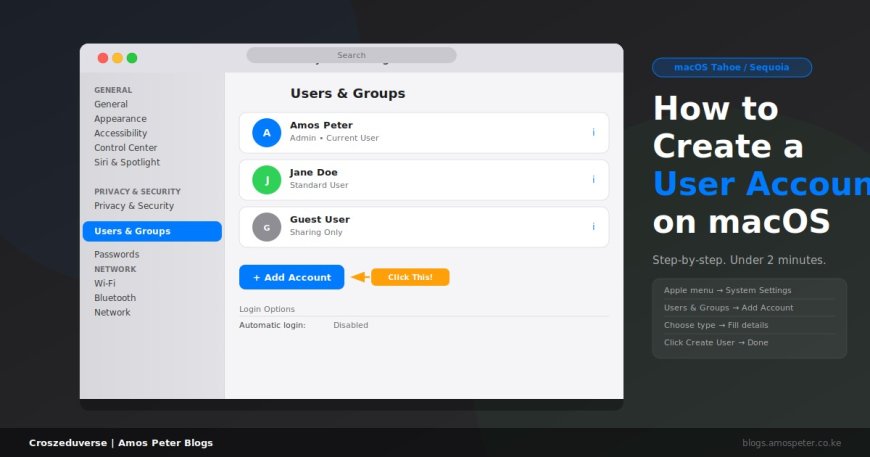
Want to add another user to your Mac? It takes less than two minutes. Here is exactly how to do it no fluff.
What You Need Before You Start
- You must be logged in as an Administrator. Standard users cannot create new accounts.
- Your Mac must be running macOS Ventura (13) or later for the System Settings path. If you are on an older version (Monterey and below), see the section at the bottom.
How to Create a User on macOS Tahoe / Sequoia / Ventura (2022–2026)
Step 1 - Open System Settings
Click the Apple logo () at the top-left corner of your screen. Select System Settings from the dropdown.
Step 2 - Go to Users & Groups
In the left sidebar, scroll down and click Users & Groups.
Step 3 - Add a New Account
Click the Add Account button. You may be prompted to enter your administrator password first do so and click Unlock.
Step 4 - Choose the Account Type
A dropdown labelled New Account will appear. Select one of the following:
| Account Type | Who It Is For |
|---|---|
| Administrator | Someone who needs full control — install apps, change settings, add/remove users |
| Standard | Everyday users — can use apps and change their own settings, nothing else |
| Sharing Only | Remote access to shared files only — cannot log in to the desktop |
| Group | A collection of users managed together for file permissions |
For a family member, coworker, or student: choose Standard. Only give Administrator access to someone you fully trust.
Step 5 - Fill In the Details
Enter the following:
- Full Name - e.g. Jane Doe (this is the display name shown on the login screen)
- Account Name - auto-filled from the full name; keep it short, lowercase, no spaces (e.g. janedoe). This becomes the name of their home folder.
- Password - create a strong password for the new user
- Verify - retype the password to confirm
- Password Hint - optional, but helpful if the user forgets
Step 6 - Click "Create User"
Hit the Create User button. The account is created instantly. You will see it appear in the Users & Groups list.
That is it. The new user can now log in from the login screen.
How to Create a User on macOS Monterey / Big Sur / Older
If you are on macOS Monterey (12) or earlier, the path is slightly different:
- Click the Apple logo > System Preferences
- Click Users & Groups
- Click the padlock icon at the bottom-left and enter your admin password
- Click the + (plus) button below the user list
- Fill in the account type, name, and password
- Click Create User
The account types and fields are the same as described above.
How to Enable the Guest User Account
The Guest User account is already built into macOS you just need to turn it on. Guest users get a temporary desktop session. When they log out, everything they did is deleted automatically.
- Go to Apple > System Settings > Users & Groups
- Click the info button (i) next to Guest User
- Toggle on Allow guests to log in to this computer
Optional: enable Limit Adult Websites to restrict web content for guests.
How to Switch Between Users
Option 1 - Fast User Switching (without logging out)
If Fast User Switching is enabled, click your name in the menu bar at the top-right, then select the other user's name.
To enable it: System Settings > Control Center > scroll to Fast User Switching > set it to show in the menu bar.
Option 2 -Log Out and Log Back In
Click Apple logo > Log Out [Your Name] > confirm. The login screen will appear. Click the other user's name and enter their password.
How to Change a User's Account Type
To promote a Standard user to Administrator (or the reverse):
- Go to System Settings > Users & Groups
- Click the i icon next to the user
- Toggle Allow user to administer this computer on or off
- Click Done
- Restart the Mac for the change to take effect
How to Delete a User Account
- Go to System Settings > Users & Groups
- Click the i icon next to the user you want to remove
- Click Delete Account
- Choose what to do with their home folder:
- Save the home folder as a disk image - keeps their files as a backup
- Delete the home folder - permanently removes everything
There is no undo for deleting a home folder. Be certain before you proceed.
Common Issues and Fixes
"Add Account" button is greyed out You are not logged in as an Administrator. Log out and log back in with an admin account, then try again.
Password field says the password is too weak macOS requires a minimum password strength. Use a mix of uppercase, lowercase, numbers, and at least 8 characters. Avoid obvious choices like "password" or "123456".
The new user account does not appear on the login screen Go to System Settings > Users & Groups > Login Options and make sure the login window is set to show a list of users rather than a name-and-password field.
New user says they forgot their password As an administrator, go to Users & Groups > click the i icon next to their account > click Reset Password > enter a new password for them.
Frequently Asked Questions
How many users can I add to a Mac? There is no hard limit. You can add as many user accounts as your storage allows, since each user's home folder takes up disk space.
Can a Standard user install apps? Yes, but only for their own account. Some system-wide installations may require an administrator password.
Does creating a new user slow down my Mac? No. User accounts only use storage space (for their home folder). They have no effect on Mac performance while you are logged in as another user.
Can two users be logged in at the same time? Yes this is what Fast User Switching is designed for. One user's session stays active in the background while the other logs in.
Is a Standard user protected from seeing my files? Yes. macOS keeps each user's home folder private by default. A Standard user cannot access another user's Desktop, Documents, Downloads, or other personal folders.
Final Thoughts
Creating a user account on a Mac is one of the simplest things you can do in System Settings. Whether you are setting up your Mac for a family member, a new employee, or keeping your work and personal life separate, individual accounts give everyone their own clean, private space on the same machine.
The whole process from opening System Settings to clicking Create User takes under two minutes once you know where to look.
What's Your Reaction?