




















How to Download Your KCSE Certificate Online - KNEC E-Certificate Portal Guide (2026)
KNEC has launched an online portal where you can download your KCSE or KCPE certificate from anywhere in Kenya. This guide walks you through every step from creating an account to paying and downloading your PDF. Portal: ecertificate.knec.ac.ke

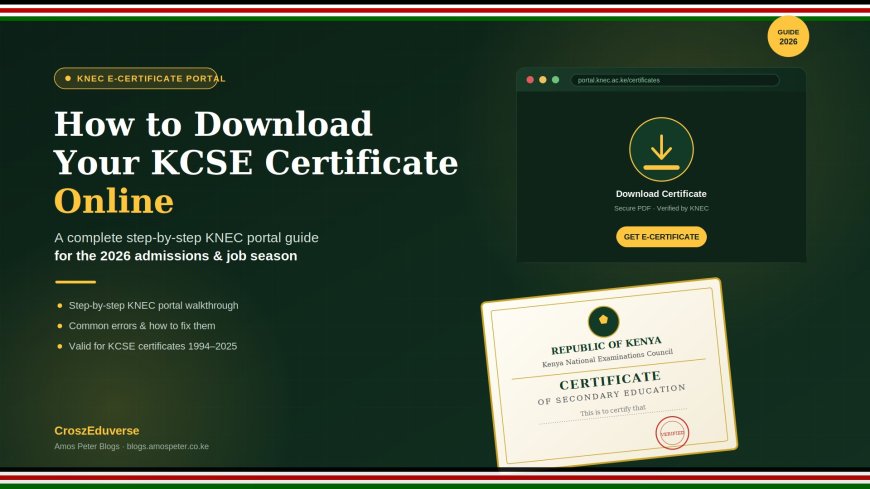
You no longer need to visit KNEC offices or go back to your old school to get your certificate. The Kenya National Examinations Council has launched an online portal that lets you download a verified digital copy of your KCSE, KCPE, or KJSEA certificate from your phone or computer anywhere, anytime.
Here is exactly how to do it.
Quick Facts Before You Start
| What | Details |
|---|---|
| Portal | ecertificate.knec.ac.ke |
| What you can download | KCSE, KCPE, KJSEA certificates |
| Years covered | 1989 to 2025 |
| Cost | Ksh 1,200 + 16% VAT + eCitizen charges (total approx. Ksh 1,300–1,450) |
| Payment method | M-Pesa or bank card via eCitizen |
| What you receive | A PDF certificate with a blockchain verification code |
| How long the PDF is available | 6 months from the date you download it |
| What you need | National ID, your index number, and the year you sat the exam |
What You Need Before You Start
Get these ready before opening the portal:
- Your National Identity Card (for Kenyan citizens) - the system verifies your details against the IPRS government database
- Your exam index number - this is the number on your result slip (e.g., 10200123456/2019)
- The year you sat the exam (e.g., 2012)
- A working email address - all login codes are sent here, there is no password
- Ksh 1,300–1,450 on M-Pesa or a bank card for payment
Step-by-Step: How to Download Your Certificate
Step 1 - Go to the Portal
Open your browser and go to:
https://ecertificate.knec.ac.ke
You can use your phone or computer. The portal works on both.
Step 2 - Create an Account (First Time Only)
If you have never used the portal before, you need to register first.
- Click Sign Up or Register
- Select Applicant (Student/Alumni) as your account type
- Enter your full name and email address
- Click Send OTP
- Check your email inbox - you will receive a 6-digit code
- Enter the code on the portal to complete registration
The OTP expires in 10 minutes. If it does not arrive, check your spam/junk folder. If it is still not there, click "Resend OTP."
Step 3 - Log In
The KNEC portal does not use passwords. Every time you log in, it sends a fresh code to your email.
- Click Login
- Enter your registered email address
- Click Request OTP
- Check your email for the 6-digit code
- Enter the code to access your dashboard
Step 4 - Complete Your Profile
Before you can generate a certificate, you must fill in your personal profile. This is a one-time step.
Fill in all of the following:
- Citizenship - select Kenya (or Other Country if applicable)
- Full name - exactly as it appears on your National ID
- Email address - already filled from your account
- Date of birth
- Phone number
- National ID number
- Profile photo - optional
Once you submit, the system automatically checks your details against the IPRS (Integrated Population Registration System) — the same government database used by banks and government services. This takes a few seconds. If your details match, your profile is verified and you can proceed.
If verification fails, double-check that your name and ID number match exactly what is on your National ID card. Even a spelling difference can cause a mismatch.
Step 5 - Generate Your Certificate
- On your dashboard, click Generate E-Certificate
- Enter your examination index number (full number, e.g., 10200123456)
- Select the examination type - KCSE, KCPE, or KJSEA
- Enter the year you sat the exam (e.g., 2014)
- Your personal details will already be filled in from your profile
- Click Submit or Proceed
The system now runs two automatic checks:
- Identity check - confirms your National ID through IPRS
- Certificate check - looks up your index number in the KNEC database to confirm your certificate exists
Both checks must pass before you can pay. If either fails, review your index number and exam year carefully and try again.
Step 6 - Pay the Fee
Once both checks pass, you are taken to the payment page via eCitizen.
- Fee: Ksh 1,200 + 16% VAT + eCitizen service charge
- Total: approximately Ksh 1,300 to Ksh 1,450
- Payment options: M-Pesa, Visa/Mastercard, bank card
To pay with M-Pesa:
- Select M-Pesa on the eCitizen payment page
- Enter your M-Pesa phone number
- You will receive an M-Pesa push notification - enter your M-Pesa PIN to confirm
- Payment confirmation usually takes 10 to 30 seconds
Step 7 - Download Your Certificate
Once payment is confirmed:
- Return to your KNEC portal dashboard
- Click Download Certificate
- Your certificate will open as a PDF in a new browser tab
- Click Save or Print to keep it
Your certificate is also saved under My Certificates in your dashboard for 6 months from the day you downloaded it. After 6 months, the download button disappears - but the record stays visible. To get another copy after 6 months, you will need to generate a new one and pay again.
Is the KNEC E-Certificate Accepted?
Yes. The digital certificate is accepted by:
- Universities and colleges in Kenya for admission
- Employers for job applications and verification
- Government offices for document processing
- Foreign institutions that need academic verification
Each certificate has a blockchain verification hash — a unique security code that employers, schools, and institutions can use to instantly verify that the certificate is genuine and has not been altered.
What If the Portal Cannot Find Your Certificate?
This can happen for a few reasons:
- Wrong index number - confirm it from your result slip or old school records. The format is usually: school code + candidate number + year.
- Wrong exam year — make sure you are entering the year you sat the exam, not the year results were released.
- Certificate not yet in the database - the portal currently covers exams from 1989 to 2025. If your exam falls outside this range, contact KNEC directly.
- Name mismatch - your profile name must match what KNEC has on record. If you changed your name after the exam, this can cause a mismatch.
If none of the above resolves it, contact KNEC through their official channels:
- Website: knec.ac.ke
- Phone: +254 20 3317412 / +254 20 3341064
What If You Forgot Your Index Number?
Your index number appears on:
- Your original KCSE result slip
- Your school leaving certificate
- Records at your former school's examination office
If you cannot trace it from any of these, contact your former school's administration. They can look it up from their KNEC submission records.
Frequently Asked Questions
- Can I download my certificate on my phone? Yes. The portal works on any phone browser. Use Chrome or Safari for the best experience.
- Do I need to create a new account every time? No. Once you register, your account stays active. Just log in using your email and the OTP that is sent each time.
- My index number is correct but the system says it cannot find my certificate. What do I do? Try adding or removing leading zeros in the index number. Some index numbers are stored differently in the KNEC database. If it still does not work, contact KNEC directly.
- Can someone else download my certificate for me? No. The portal requires your National ID for identity verification through IPRS. Only you — or someone with your ID and email access can generate your certificate.
- Is the downloaded PDF the same as the physical certificate? The e-certificate is a digitally signed, verified equivalent of the original physical certificate. It is accepted the same way for employment, university admissions, and official processes. It is not a replacement if you specifically need the original physical document for certain uses.
- What if I already paid but the certificate did not download? Go back to your dashboard and check My Certificates. If your payment went through, the certificate should be there. If not, wait a few minutes and refresh. If it still does not appear, contact KNEC with your payment confirmation details.
- Can people from outside Kenya use this portal? Yes, but the current identity verification is set up primarily for Kenyan National ID holders. If you are a non-citizen who sat KCSE or KCPE, the portal has a "Other Country" option during profile setup follow those steps and contact KNEC if you get stuck.
Final Thoughts
KNEC's e-certificate portal is one of the most useful government digital services launched in Kenya in recent years. Whether you lost your original certificate, need it urgently for a job application, or just want a secure backup the whole process from registration to PDF download can be done in under 20 minutes from your phone.
Go to ecertificate.knec.ac.ke, follow the seven steps above, and you will have your certificate in your hands.
For any issues with the portal, contact KNEC at knec.ac.ke or call +254 20 3317412.
What's Your Reaction?