





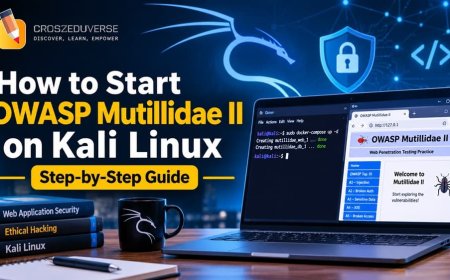





















How to Start OWASP Mutillidae II on Kali Linux: Step-by-Step Guide
Learn how to install and start OWASP Mutillidae II on Kali Linux using Docker. This beginner-friendly guide covers installation, configuration, accessing Mutillidae through 127.0.0.1 or localhost, troubleshooting, and stopping the application.

1. How to Start OWASP Mutillidae II on Kali Linux
f you are learning ethical hacking or web application security, OWASP Mutillidae II is one of the applications you can use for practical exercises.
Mutillidae is an intentionally vulnerable web application designed to help students and security professionals understand common web application vulnerabilities.
You can use it to practise identifying and understanding vulnerabilities such as:
-
SQL Injection
-
Cross-Site Scripting (XSS)
-
Authentication weaknesses
-
Session management problems
-
Security misconfigurations
-
Input validation weaknesses
-
Access control issues
In this tutorial, we will install and start OWASP Mutillidae II on Kali Linux using Docker.
By the end of this guide, you should be able to open Mutillidae in your browser and start practising web application security.
Requirements
Before starting, make sure you have:
-
Kali Linux installed.
-
An active internet connection.
-
A web browser such as Firefox.
-
Basic knowledge of using the Linux terminal.
-
Enough disk space to download and run the Docker containers.
We will use Docker because it makes it easier to install and run Mutillidae together with its required services.
2. Step 1: Update Kali Linux
Open your Kali Linux terminal and run:
sudo apt updateYou can also upgrade installed packages:
sudo apt upgrade -yAllow the update process to finish before continuing.
3. Step 2: Install Docker
Docker allows you to run applications inside containers without manually configuring all their dependencies.
Install Docker using:
sudo apt install -y docker.ioAfter installation, start the Docker service:
sudo systemctl enable docker --nowCheck whether Docker is running:
sudo systemctl status dockerYou should see an active status.
Press Q to exit the status screen.
You can also confirm the installation using:
sudo docker --version4. Step 3: Install Git and Docker Compose
We need Git to download the Mutillidae project files.
Run:
sudo apt install -y git docker-composeCheck that both tools are installed:
git --version
docker-compose --version
If your Kali installation uses Docker Compose V2 instead, check it using:
docker compose versionIn the following steps, we will use the docker-compose command used by the Mutillidae project instructions.
5. Step 4: Download OWASP Mutillidae II
Now we need to download the Mutillidae Docker project from GitHub.
Run:
git clone https://github.com/webpwnized/mutillidae-dockerhub.gitAfter downloading, enter the project directory:
cd mutillidae-dockerhubCheck the files:
lsYou should see the project files, including the Docker Compose configuration.
6. Step 5: Start Mutillidae
While inside the mutillidae-dockerhub directory, run:
sudo docker-compose up -dThis command starts the containers in the background.
Docker will download the required images if they are not already available on your computer.
The project includes services required by Mutillidae, such as the web application and its database.
The first startup may take some time depending on your internet connection.
7. Step 6: Confirm That Mutillidae Is Running
After starting the containers, check their status:
sudo docker-compose psYou can also check all running Docker containers:
sudo docker psConfirm that the required containers are running before opening the application.
8. Step 7: Open Mutillidae in Your Browser
Once the containers are running, open Firefox or another browser.
You can access Mutillidae using any of the following addresses, depending on the configured web port.
Option 1: Using the local IP address
http://127.0.0.1This is a simple way to access the application from the same Kali Linux machine.
Option 2: Using localhost
http://localhostThis also directs your browser to your local machine.
Option 3: Using the Mutillidae hostname
http://mutillidae.localhostThis is another address provided by the Mutillidae Docker setup.
If the hostname does not work, you may need to add it to your hosts file:
echo "127.0.0.1 mutillidae.localhost" | sudo tee -a /etc/hostsImportant: You do not need to add this hosts-file entry if you are already accessing Mutillidae successfully through http://127.0.0.1.
If your Docker configuration maps the application to port 8080 instead of port 80, use:
http://127.0.0.1:8080The correct address depends on the port mapping in your Docker Compose configuration.
9. Step 8: Set Up the Mutillidae Database
When you first open Mutillidae, the application may display a database setup or database connection warning.
If this happens:
-
Check the message displayed by the application.
-
Follow the database setup or rebuild option provided by Mutillidae, if available.
-
Allow the application to complete the setup.
-
Refresh the browser.
If the database is not connecting, check the container logs:
sudo docker-compose logsYou can also check the database container separately through the Docker Compose services.
10. Step 9: Start Practising Web Application Security
After successful installation, you can begin exploring the different exercises available in Mutillidae.
Some of the practical areas you can study include:
1. SQL Injection
Learn how poorly validated input can allow attackers to interfere with database queries.
2. Cross-Site Scripting (XSS)
Understand how malicious scripts can be introduced into web pages through unsafe input handling.
3. Authentication
Explore weaknesses in login systems and authentication mechanisms.
4. Session Management
Learn how websites manage user sessions and what happens when session security is weak.
5. Security Misconfiguration
Understand how incorrect application settings can expose a web application to security risks.
6. Access Control
Explore how applications control what different users can access.
Use the exercises to understand the vulnerabilities, how they occur, and how developers can prevent them.
11. Step 10: Stop or Restart Mutillidae
Step 10: Stop or Restart Mutillidae
When you finish practising, you can stop the application.
First, make sure you are inside the Mutillidae project directory.
Run:
sudo docker-compose downTo start it again later, enter the project directory and run:
sudo docker-compose up -dYou do not need to download the project again every time you want to use Mutillidae.
Common Problems and Solutions
1. Docker is not running
If you receive a Docker connection error, start the Docker service:
sudo systemctl start dockerCheck its status:
sudo systemctl status docker2. Permission denied
If Docker displays a permission error, run your Docker commands with sudo.
For example:
sudo docker psYou can also add your user to the Docker group:
sudo usermod -aG docker $USERLog out and log back in for the group change to take effect. Be aware that membership of the Docker group grants powerful privileges on the system.
3. 127.0.0.1 is not opening Mutillidae
Check whether the containers are running:
sudo docker-compose psThen check the port mapping:
sudo docker psIf another application is already using port 80, Docker may fail to bind the Mutillidae web service to that port.
You can check which applications are using ports with:
sudo ss -tulpnIf Mutillidae is mapped to port 8080, try:
http://127.0.0.1:80804. mutillidae.localhost is not working
You can use:
http://127.0.0.1Alternatively, add the hostname to your hosts file:
echo "127.0.0.1 mutillidae.localhost" | sudo tee -a /etc/hosts5. The database is not connecting
Check the containers and their logs:
sudo docker-compose pssudo docker-compose logsLook for database errors and confirm that the database container has started successfully.
12. Frequently Asked Questions
1. Is OWASP Mutillidae free?
Yes. OWASP Mutillidae II is an open-source, intentionally vulnerable web application used for security education and testing.
2. Can I run Mutillidae on Kali Linux?
Yes. You can run it on Kali Linux using Docker.
3. Do I need an internet connection every time I open Mutillidae?
You need internet access when downloading the project and required Docker images. Once everything has been downloaded, you can generally run the containers locally without an internet connection.
4. What is the difference between 127.0.0.1 and mutillidae.localhost?
Both can direct your browser to your local computer. 127.0.0.1 is the loopback IP address, while mutillidae.localhost is a hostname that resolves to the local computer when configured correctly.
5. Can I use Mutillidae to test real websites?
No. Mutillidae is a deliberately vulnerable training application. Use it in a controlled environment. Only test real websites and systems when you have explicit permission.
Security Reminder
Mutillidae is intentionally vulnerable. Do not expose it to the public internet or install it on a production server.
Keep your lab local and isolated, and use it only for authorised cybersecurity training and practical exercises.
Official Resources
-
OWASP Mutillidae II: https://owasp.org/projects/mutillidae-ii
-
Mutillidae Docker Project: https://github.com/webpwnized/mutillidae-dockerhub
-
Kali Linux Docker Installation Guide: https://www.kali.org/docs/containers/installing-docker-on-kali/
-
Docker Documentation: https://docs.docker.com/
What's Your Reaction?