





























How to Set Up Google Analytics 4 (GA4): Step-by-Step Guide for Beginners
Learn how to set up Google Analytics 4 (GA4) on your website step by step. Follow this beginner-friendly guide to create an account, install tracking, and check your website traffic.


How to Set Up Google Analytics 4 (GA4): Step-by-Step Guide for Beginners
Do you want to know how many people visit your website, which pages they read, and where your visitors come from? Google Analytics 4 (GA4) can help you answer these questions.
Google Analytics 4 is a free analytics platform from Google that helps website owners understand how people use their websites and apps. It can show you information such as the number of visitors, the pages they view, how they arrive at your website, and the actions they take.
For example, if you own a business website, blog, online shop or educational website, GA4 can help you understand which content attracts visitors and which marketing activities bring people to your site.
In this tutorial, CroszEduverse will show you how to set up Google Analytics 4 on a website, step by step. You do not need to be an advanced programmer, but you may need access to your website's administration panel.
What you will learn:
-
How to create a Google Analytics account.
-
How to create a GA4 property.
-
How to add your website as a data stream.
-
How to find your Measurement ID.
-
How to install GA4 on your website.
-
How to test whether tracking is working.
What Do You Need Before Setting Up GA4?
Before you begin, make sure you have the following:
-
A Google account.
-
A website that you own or have permission to manage.
-
Access to your website's dashboard or website code.
-
Permission to manage the Google Analytics property.
If you use WordPress, Shopify, Wix or another website builder, you may be able to install GA4 through a built-in integration or plugin.
For this guide, we will use a website as the example.
Step 1: Open Google Analytics
First, visit the official Google Analytics website.
Official link: https://analytics.google.com/
Sign in using your Google account.
If you have never used Google Analytics before, you may see a welcome page with a button labelled Start measuring.
Click this button to begin setting up your account.
Step 2: Create Your Google Analytics Account
After clicking Start measuring, Google will guide you through the account setup process.
Enter an account name. This can be your business name, organisation name or website management name.
For example, you could use:
Account name: CroszEduverse
Review the data-sharing settings displayed on the screen and select the options that match your preferences and requirements.
Click Next to continue.
An Analytics account can contain multiple properties. This means you may be able to manage several websites under one account, depending on how you organise your websites and businesses.
Step 3: Create a GA4 Property
A property is where Google Analytics organises the data collected from your website or app.
For example, if you want to track visitors to your business website, you can create a property named after that website.
Enter the following information:
-
Property name: Your website or business name.
-
Reporting time zone: Select the time zone you want to use for reports.
-
Currency: Select the currency relevant to your reporting needs.
For a Kenyan business, you might select East Africa Time and Kenyan shillings (KES), if those settings suit your reporting requirements.
Choosing the correct time zone is important because it affects how dates and times appear in your reports. Choose your currency carefully, especially if you plan to measure online sales.
Click Next.
Google may ask you to select your industry category, business size and intended use of Analytics. Complete the options that apply to your website, then proceed to create the property.
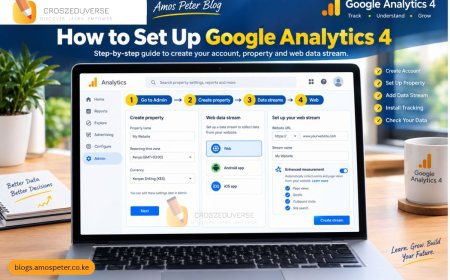
Step 4: Create a Web Data Stream
After creating the property, you need to tell Google Analytics where the website data will come from.
This is done by creating a data stream.
Follow these steps:
-
Open the Admin section of Google Analytics.
-
Select the correct property.
-
Find Data streams under the data collection settings.
-
Click Add stream.
-
Select Web.
You may also see Android and iOS options. Those are for mobile applications. For a normal website, choose Web.
Enter your website details.
Website URL: Enter your website address, such as https://example.com.
Stream name: Enter a name that helps you identify the website, such as Main Website.
Check the enhanced measurement setting. When enabled, it can automatically collect certain interactions, such as page views, scrolling, outbound clicks and file downloads, where supported.
Review the available options and click Create stream.
Step 5: Copy Your GA4 Measurement ID
After creating the web data stream, Google Analytics displays its stream details.
Look for the Measurement ID.
A GA4 Measurement ID normally begins with the letter G-, followed by a series of characters.
Example format:
G-XXXXXXXXXX
This is an example only. Your website will have its own Measurement ID.
Copy the actual ID shown in your Google Analytics account. You will need it when installing the tracking tag on your website.
Important: A Measurement ID identifies your data stream. Copying it alone does not mean that tracking has been installed successfully.
Step 6: Install Google Analytics on Your Website
Now that your property and data stream are ready, you need to connect your website to Google Analytics.
There are several installation methods. Choose the one that matches your website platform.
Method A: Install GA4 on WordPress
If your website uses WordPress, you can use a suitable plugin or an available Google integration.
One option is Google's Site Kit plugin.
Follow these steps:
-
Sign in to your WordPress dashboard.
-
Open Plugins and select Add New Plugin.
-
Search for Site Kit by Google.
-
Confirm that you have selected the official plugin.
-
Install and activate it.
-
Follow the setup instructions to connect your Google account.
-
Connect the appropriate Google Analytics property, or follow the plugin's instructions to set it up.
Make sure you select the correct website and GA4 property.
If you already have GA4 installed through another plugin, your theme or Google Tag Manager, check the existing setup before adding another tracking method. Installing the same tag more than once can lead to duplicate measurements.
Official resource: https://sitekit.withgoogle.com/
Method B: Install GA4 Using Google Tag Manager
Google Tag Manager is a tool that helps you manage website tracking tags without having to edit your website code every time you make a tracking change.
It is useful for websites that need more advanced tracking in the future.
Follow these steps:
-
Sign in with your Google account.
-
Create a Tag Manager account if you do not already have one.
-
Create a container for your website.
-
Follow Google's instructions to install the Tag Manager container on your website.
-
Open the container workspace.
-
Create a new tag and choose the appropriate Google tag setup.
-
Enter your GA4 Measurement ID when prompted.
-
Configure the tag to load on the relevant website pages.
-
Use Preview mode to test the setup.
-
Submit and publish the container when you have confirmed that it works.
The exact menu labels may differ as Google updates its interface. Follow the current instructions in Tag Manager and Analytics.
Important: If your website already has a Google tag installed directly or through a plugin, check the existing configuration before adding another one.
Official resource: https://support.google.com/tagmanager/
Method C: Install GA4 Directly in Your Website Code
If you have access to your website's HTML, you can install the Google tag directly.
First, open Google Analytics and select the correct property.
Then:
-
Open Admin.
-
Go to Data streams.
-
Select your website's web data stream.
-
Open the Google tag installation instructions.
-
Select the manual installation option if available.
-
Copy the complete Google tag code provided by Google.
-
Add it immediately after the opening
<head>tag on the relevant pages, following Google's installation instructions. -
Save your changes and confirm that the tag appears on the live website.
Do not replace the example Measurement ID in a tutorial with your own code unless Google provides the complete tag for your property. Use the exact installation code generated for your website.
If you use a PHP website with a shared header file, you may be able to place the tag in that shared file so it loads across the pages that use it. Make a backup before editing production code.
Official resource: https://support.google.com/analytics/answer/14183469
Step 7: Check Whether Google Analytics Is Working
After installing the tag, do not assume that everything is working correctly. Test it.
Follow these steps:
-
Open your website in another browser tab.
-
Visit several pages.
-
Return to Google Analytics.
-
Open the Reports section.
-
Select Realtime.
-
Check whether your visit appears in the report.
You may see an active user or other activity when you browse the website. Results can take time to appear, and browser settings, consent choices, blockers or an incorrect installation may affect what Analytics receives.
If you do not see any data immediately, wait a little and test again.
You can also use Google Tag Assistant to help diagnose whether tags are installed and firing correctly.
Official resource: https://tagassistant.google.com/
Step 8: Check That You Are Not Tracking the Same Page Twice
One common setup mistake is installing the same Google Analytics tag through more than one method.
For example, a website owner might install GA4 using a WordPress plugin and then add the same tag through Google Tag Manager.
Depending on the configuration, this can cause duplicate page views or other incorrect measurements.
To avoid this problem:
-
Review your current website tracking setup.
-
Identify how the Google tag is installed.
-
Avoid adding a duplicate installation.
-
Test the setup using Tag Assistant or another suitable debugging method.
-
Check the Realtime report after making changes.
Accurate tracking is important because reports are only useful when the underlying data is reliable.
Common Google Analytics 4 Setup Problems
Google Analytics Is Not Showing Visitors
Check that the correct Measurement ID is installed and that the tag loads on the pages you are testing.
Also review browser extensions, consent settings and tag installation errors.
The Wrong Website Is Connected
Check the website URL and the selected GA4 property. If you manage multiple websites, make sure you are viewing the correct property.
Page Views Are Being Counted Twice
Review whether the same Google tag has been installed through multiple plugins, a theme and Google Tag Manager.
Data Is Missing From Some Pages
Check that the tracking tag is present on the relevant pages and that your site's templates load it correctly.
Reports Are Still Empty
A new property may need time to receive and process data. Test the website and check the Realtime report before deciding that the setup has failed.
What Should You Do After Setting Up GA4?
Once GA4 is collecting data, you can begin learning how to use it to understand your website.
Useful next steps include:
-
Checking how many users visit your website.
-
Finding the pages that receive the most views.
-
Understanding which channels bring visitors to your website.
-
Measuring important actions, such as form submissions or purchases.
-
Connecting Google Analytics with other supported Google services where appropriate.
-
Reviewing your privacy and consent requirements.
Remember that installing GA4 does not automatically configure every business goal. Some important actions may require additional event tracking and setup.
In our next CroszEduverse guide, we will explain how to use Google Analytics 4 reports to interpret website traffic, understand audience behaviour and make better marketing decisions.
Frequently Asked Questions
1. Is Google Analytics 4 free?
Google Analytics 4 has a free version that is suitable for many websites and businesses. Google also offers paid Analytics products for certain enterprise needs.
2. Can I install GA4 without coding?
Yes. Depending on your website platform, you may be able to use a built-in integration, a supported plugin or Google Tag Manager. Some setups require help from a developer.
3. How long does GA4 take to start showing data?
Data may begin appearing within minutes, but processing and report availability can vary. Google recommends checking the Realtime report to verify data collection after installation.
4. Do I need Google Tag Manager to use GA4?
No. You can install the Google tag directly or use a supported website integration. Google Tag Manager is an alternative that can make managing multiple tags easier.
5. Can I use GA4 on a WordPress website?
Yes. You can connect WordPress using a suitable integration, such as Site Kit by Google, or another properly configured installation method.
6. Does GA4 automatically track every visitor action?
No. GA4 collects certain events automatically or through enhanced measurement when enabled and supported. Other actions, such as specific business form submissions, may require additional configuration.
Conclusion
Google Analytics 4 helps website owners understand how people find and use their websites. Setting it up involves creating a property, adding a web data stream, installing the Google tag and checking that data is being received.
By following these steps, you can build a foundation for measuring website traffic and evaluating your online marketing activities.
For more beginner-friendly guides on digital marketing, SEO, website development and technology, continue learning with CroszEduverse, also known as Amos Peter Blogs.
Official Google resources
Disclaimer: Google may update its interface and menu names. If your screen looks different, follow the latest official Google instructions linked in this article.
What's Your Reaction?